sales-i SugarAI Integration
Overview
This guide covers the latest version of the sales-i SugarAI integration. If your integration differs from the content in this guide, contact your Customer Success Manager to update your integration to the latest version.
The sales-i integration with SugarAI brings powerful, sales insights from sales-i directly into Sugar. With this integration, Recommendations and user-created Alerts from sales-i are displayed as Recommendation records within Sugar
Each recommendation contains key details about the potential sales opportunity and lets you take immediate action, by sending an email, scheduling a call, or creating a task, all directly from the record. Once you review and act on a recommendation, its status is automatically updated, making it easy to stay organized and track your progress.
In addition, this integration allows you to interact with sales-i insights directly from Account records in Sugar through the sales-i dashlet.
By surfacing hidden opportunities from your sales data within your CRM, you can understand what your accounts are buying, what they could be buying, and how you are engaging with them, all in one unified view.
This guide covers:
Prerequisites
You must meet the following requirements before the integration can be enabled:
SugarAI
- Your instance is on SugarCloud and is using version 25.1.x or higher.
- Your instance is hosted in one of the following regions:
- ap-southeast-2: Asia Pacific (Sydney)
- eu-west-2: Europe (London)
- eu-central-1: Europe (Frankfurt)
- us-west-2: US West (Oregon)
- Your instance has the Sell Advanced or Sell Premier license.
- Your instance has SugarIdentity enabled.
sales-i
- You are on the latest version of sales-i. sales-i Classic cannot integrate to SugarAI.
- Your instance is actively pulling data from your ERP system.
Enabling the Integration
Once your sales-i and SugarAI instances meet the needed requirements, contact your Customer Success Manager. Your customer success manager will work with you to configure and enable the integration.
Sync Behavior
Once the integration is enabled, data will begin syncing between sales-i and SugarAI.
- The initial sync includes existing sales-i data.
- The ongoing sync runs once daily, timed to align with the update of your ERP data in your sales-i instance.
- When the ongoing sync is triggered, the following data is synced:
Pushed from sales-i to SugarAI
| sales-i | SugarAI |
| An AI-generated recommendation is created | A recommendation is created |
| An account is added to a user created alert report | A recommendation is created |
| An account is created | An account is created |
| An account is updated | The related account is updated |
| An account is deleted | Nothing happens |
| A contact is created* | A contact is created |
| A contact is updated* | The related contact is updated |
| A contact is deleted* | Nothing happens |
*Syncing Contacts from sales-i to SugarCRM is optional and will be enabled only if requested during the integration configuration with your customer success manager.
Pushed from SugarAI to sales-i
| SugarAI | sales-i |
| A recommendation is dismissed | The related AI-generated recommendation or user created alert is dismissed |
Recommendations
Recommendations can be accessed from the Recommendations module and dashlet in SugarAI.
Recommendations Module
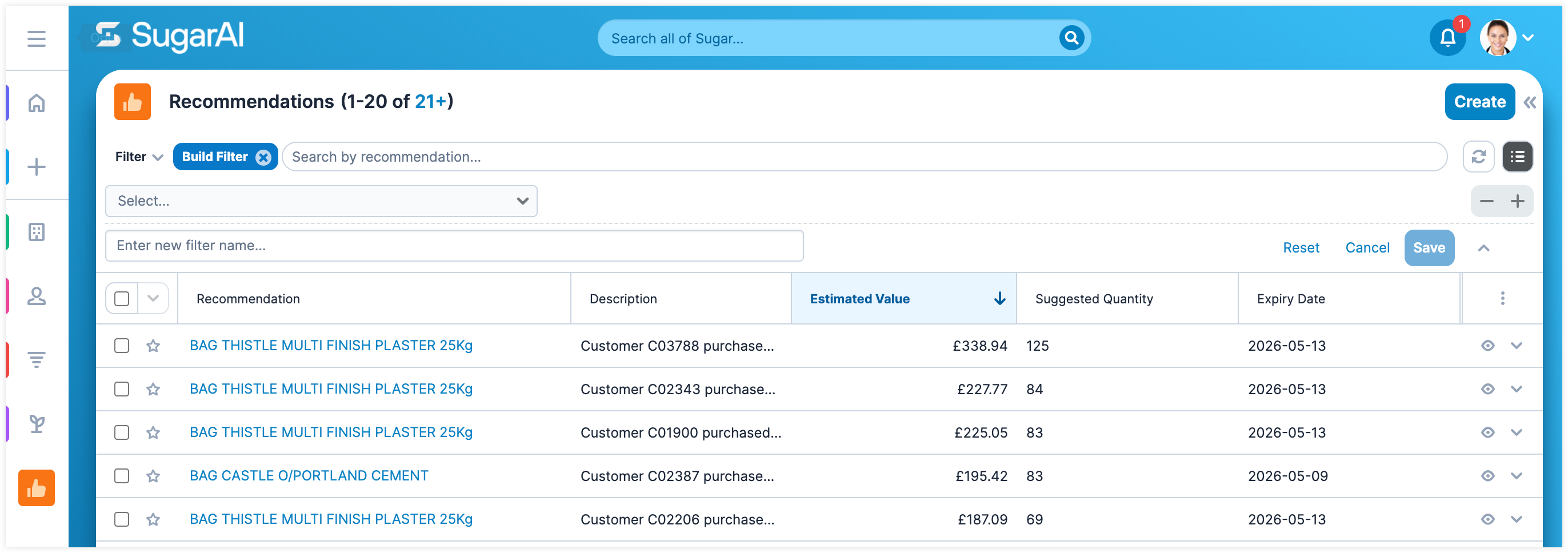
The Recommendations module can be accessed from the navigation bar. From the Recommendations module list view, you can manage your recommendation records. Refer to our SugarAI User Interface guide to learn more about working with list views.
Recommendations Dashlet
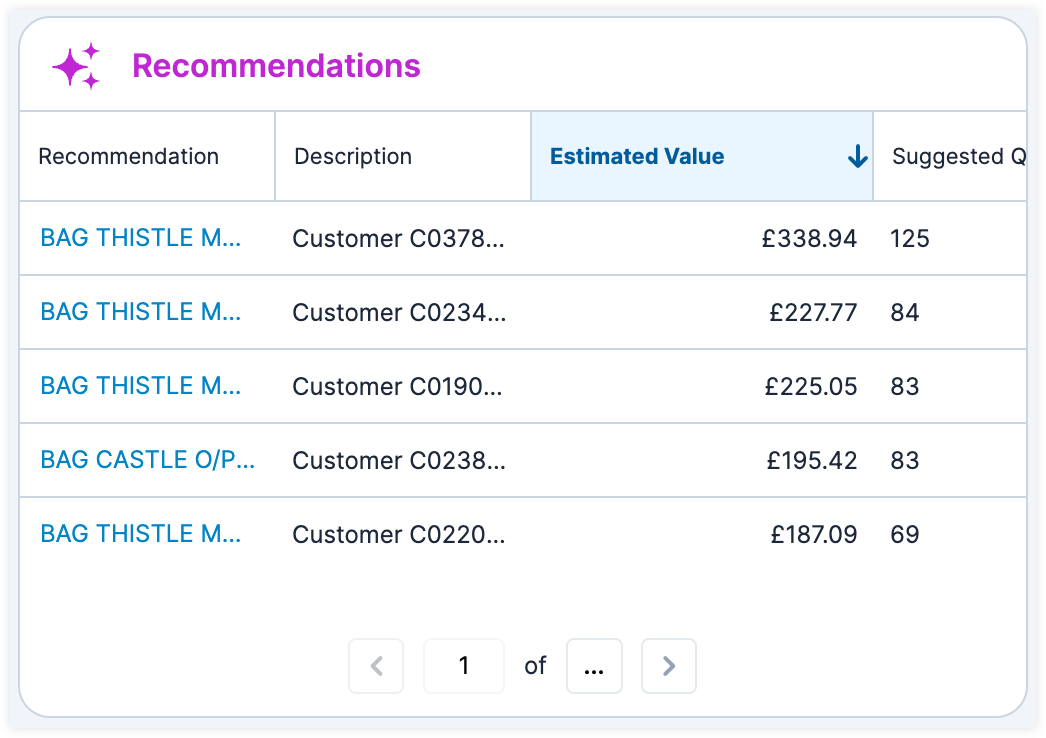
The Recommendations dashlet displays the list view of the Recommendations module, allowing you to quickly access recommendations from various locations in Sugar. The dashlet can be added to your Home page, list view, record view intelligence pane, and focus drawer dashboards. Refer to our SugarAI Dashboards and Dashlets guide to learn more about working with dashboards and adding dashlets.
Working with Recommendations
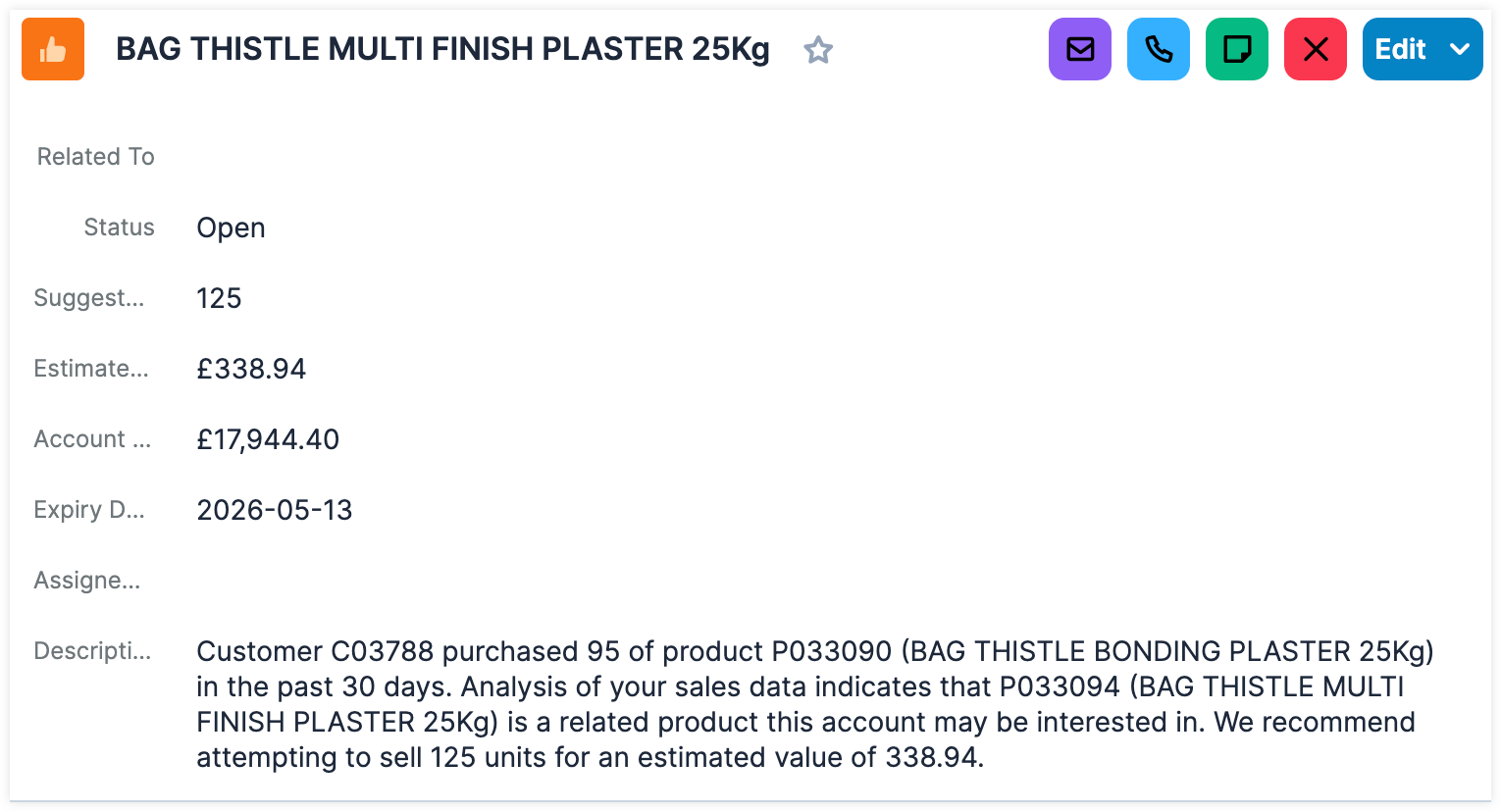
From the recommendation record, you can review key details and take action on the recommendation directly from the record.
Recommendation Fields
The Recommendations module includes the following standard fields. The fields displayed in your recommendation record view can vary based on your administrator's configuration.
| Field | Description |
| Account Value | The total value of all ERP-recorded invoices for the sales-i account related to the recommendation. |
| Actions | This field displays the Recommendation action buttons. |
| AI Generated | This checkbox field will be selected if the recommendation was created from a AI-generated recommendation in sales-i. |
| Assigned to | The Sugar user assigned to the recommendation. |
| Confidence Score % | If the recommendation was created from a AI-generated recommendation in sales-i, this field displays the predicted confidence level of successfully closing the potential opportunity, based on historical ERP data. |
| Date Created | The date the record was created. |
| Date Modified | The date the record was last modified. |
| Description | If the recommendation was created from a AI-generated recommendation in sales-i, an AI-generated description may be included, providing reasoning for why the recommendation was made. If the recommendation was created from a user-created alert, the alert description from sales-i will be displayed. |
| Estimated Value | The estimated value of the recommendation which is composed of the average unit price multiplied by the suggested quantity. |
| Expiry Date | The date the recommendation will expire. |
| Generated By | If the recommendation was created from a user-created alert, this field displays the name of the sales-i user who created it. If the recommendation was created from an AI-generated recommendation, the AI icon will be displayed. |
| Product Name | If the recommendation was created from a AI-generated recommendation in sales-i, this field displays the product associated with the recommendation. |
| Recommendation | The name of the product being recommended. |
| Related To | The account created by the integration that is related to this recommendation. |
| Resolution Comments | After taking action on a recommendation, use this field to leave comments on the steps you took. |
| Status |
The status of the recommendation. This field can be set manually or will be updated automatically when you use an action button:
|
| Suggested Quantity |
If the recommendation was created from a AI-generated recommendation in sales-i, this field displays how many of the recommended product you should attempt to sell based on your sales data. |
| Type |
There are two recommendation types:
|
For information on using and editing various field types, refer to the SugarAI User Interface guide. Users with administrator or developer access can alter, add, or remove fields via Admin > Studio. For more information on configuring fields, refer to the SugarAI Studio guide.
Acting on a Recommendation
After reviewing a recommendation, you can use the available action buttons in the upper right of the record view to quickly take action on the potential opportunity.
| Action Button | Description | |
 |
Send Email | Compose and send an email. Once the email is sent, the recommendation’s status is automatically set to “Accepted”. |
 |
Create Call | Schedule or log a call. Once the call record is created, the recommendation’s status is automatically set to “Accepted”. |
 |
Create Task | Create a task. Once the task record is created, the recommendation’s status is automatically set to “Accepted”. |
 |
Dismiss | Dismiss the recommendation if you feel it is not valid. Once a recommendation is dismissed, the related AI-generated recommendation or alert in sales-i will be dismissed the next time data is synced. |
sales-i Dashlet
From the sales-i dashlet, you can access your sales-i insights directly from Account records in Sugar. Refer to our SugarAI Dashboards and Dashlets guide to learn more about working with dashboards and adding dashlets.