Shipping Addresses
Overview
Sugar's Shipping Addresses module allows organizations (e.g., in manufacturing, distribution) to add and manage multiple shipping locations that belong to the same customer and share the same account in their ERP system. Many organizations operate warehouses, manufacturing hubs, distribution centers, etc. across multiple sites. For example, a customer may be invoiced at a single corporate headquarters while receiving shipments at separate facilities in different cities. Multiple shipping addresses allow a single account to maintain several delivery locations, helping users select the correct destination, reduce shipping and order-entry errors, and keep Sugar aligned with ERP systems that track multiple ship-to identifiers per customer.
The multiple shipping addresses feature is disabled by default, so system administrators must enable it via the Shipping Addresses Settings page. For more information on enabling this feature, refer to the Products and Quotes documentation in the Administration Guide. The multiple shipping addresses setting cannot be disabled once enabled. In addition, the Shipping Addresses module is hidden by default from the navigation bar. To display the module in the navigation bar, administrators must move it to the Available Modules list via Admin > Navigation Bar and Subpanels.
Once enabled, each account may be related to multiple shipping address records, and users can select a specific shipping address related to the account instead of a single account-level address for quotes. Each shipping address record can also be related to many quotes.
Keep the following best practices in mind when working with shipping addresses:
- Use clear and consistent location names (e.g., New York Distribution Center, Chicago Manufacturing Hub) so that users can easily identify the correct address.
- Confirm the complete address before creating a new shipping address record to avoid duplicates in the system.
-
Follow your organization's integration process when updating ERP-managed shipping information.
Please note that you will only be able to see shipping address records as allowed by your team membership, user access type, and assigned roles. For more information on teams and roles, please refer to the Team Management and Role Management documentation in the Administration Guide.
Shipping Addresses and Accounts
When Shipping Addresses is enabled for your instance, the Sugar account's stock Shipping Address field is replaced with a Shipping Addresses subpanel to allow users to manage all the customer's shipping locations in one place.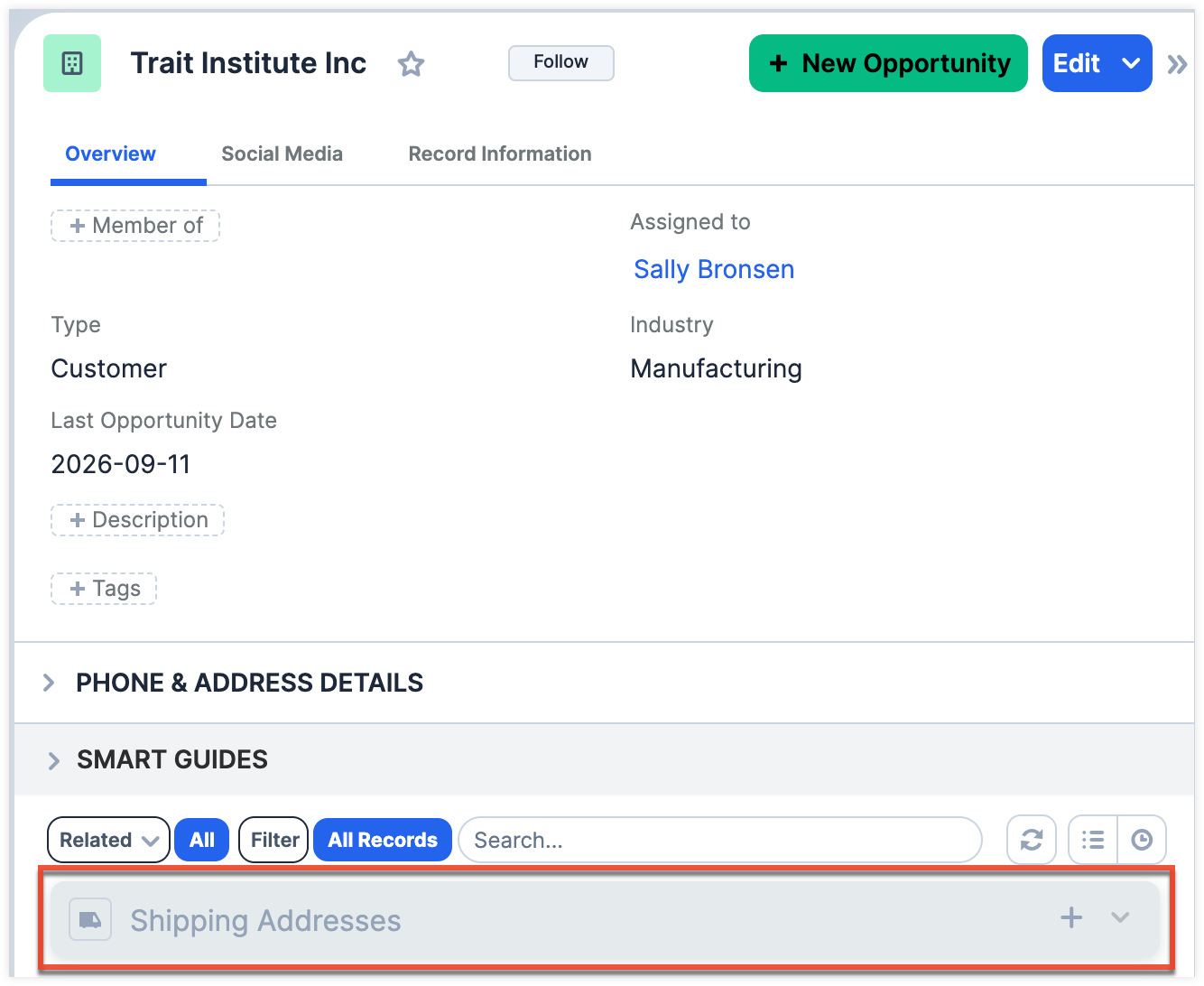
From the Shipping Addresses subpanel, users can:
- View key identifying details of all shipping addresses associated with the current account.
- Create shipping addresses directly from the related subpanel without having to navigate to the Shipping Addresses module.
- Access and edit shipping address records, based on your permissions configured in roles.
- Add delivery instructions in the shipping address record's Description field.
- Mark an outdated or no-longer-used shipping address as inactive.
Note: Before editing a shipping address that originated from your ERP system, confirm which system is considered the system of record for that data, as some information may need to be updated in the ERP system first then synced back to Sugar.
Shipping Addresses and Quotes
When Shipping Addresses is enabled for your instance, the quote's stock Shipping Account Name field is replaced with a Ship-To Address field. The Ship-To Address field's Search and Select drawer is pre-filtered by your administrator to only display active shipping addresses related to the quote's account. This filter cannot be changed or removed, but you can still apply additional filters to narrow your search.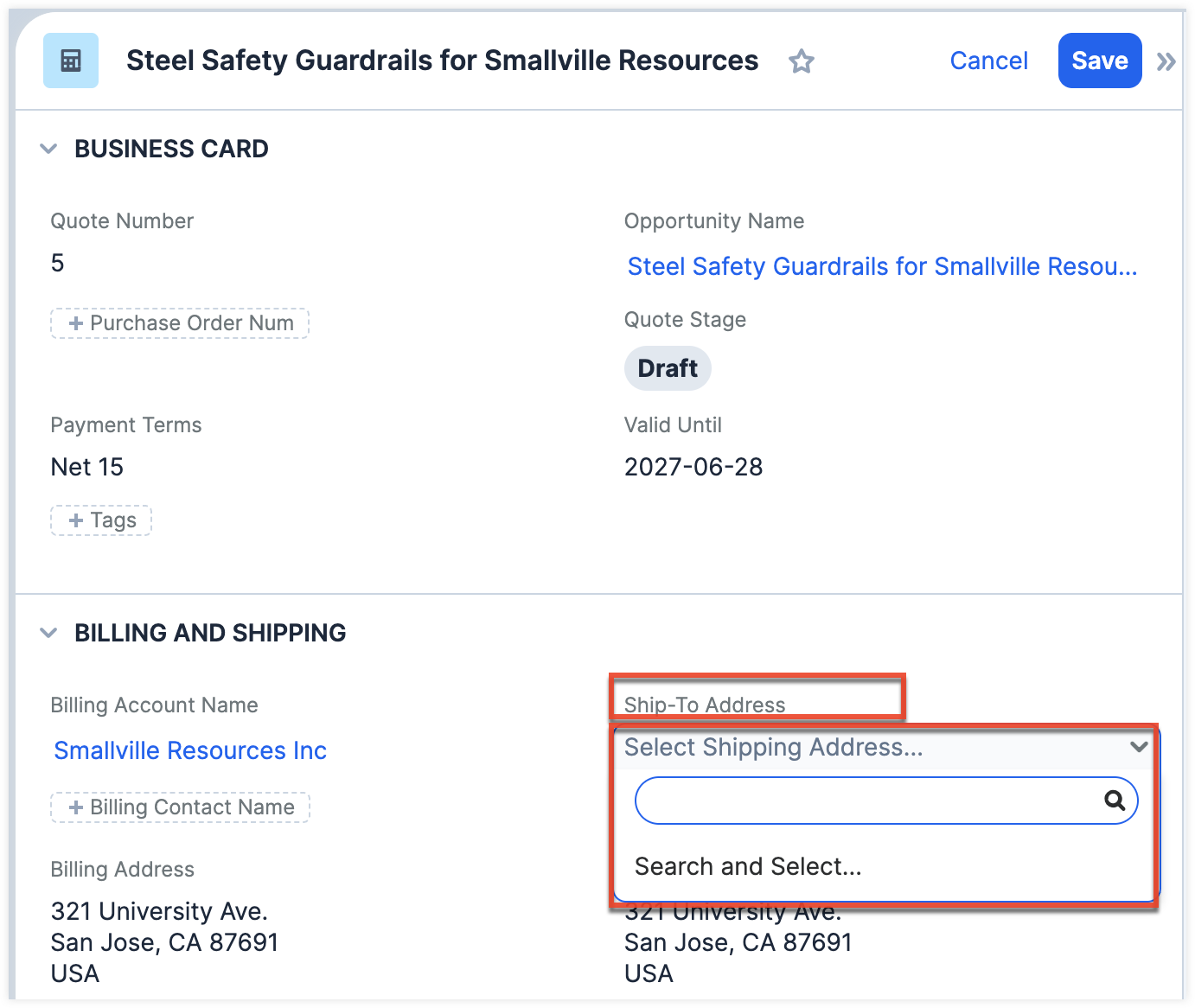
Once you select a shipping address, its address values (e.g., street, city, state) are copied into the quote's Shipping Address fields. Please note that these copied address values are a one-time snapshot, and if that shipping address record is later edited, the quote will still preserve the original address that existed when it was selected. You can edit the Shipping Address fields directly, unless your administrator has made them read-only.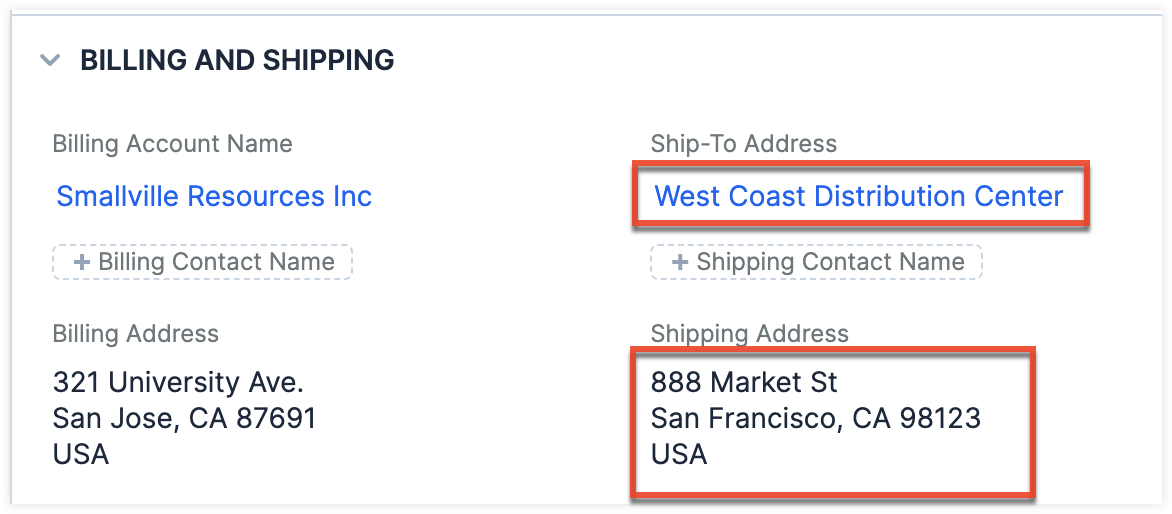
The shipping address selected on the quote can also be passed to your ERP system as part of the order or transaction process, helping ensure that the order is associated with the correct ERP ship-to record and delivered to the correct customer location.
If the quote's Billing Account Name changes, the previously selected Ship-To Address is cleared, and you will need to select a new address from the list of addresses related to the new account.
Note: If the Shipping Address field is cleared, saving the quote without selecting a new address will not remove the previous values from the database. Select a new address instead of leaving it blank.
Marking Shipping Addresses as Inactive
If a shipping address should no longer be available, the administrator or users assigned to a role with edit permissions to the module can mark the address as inactive by enabling the Inactive checkbox on the record. This will hide the address from the list of shipping addresses available to select on quotes.
Please note the following guidelines for inactive shipping addresses:
- Shipping addresses that are marked inactive will not appear in the Search and Select drawer when choosing a shipping address on a quote.
- Inactive shipping addresses that were previously used in quotes remain visible on the quote record.
- Inactive shipping addresses remain viewable and editable for users with appropriate role permissions.
Deleting Shipping Addresses
Shipping addresses can be deleted if they were added by mistake or should not be in the system. But please note that shipping addresses meeting the following criteria cannot be deleted from Sugar:
- Shipping addresses with an ERP Integration Sync ID cannot be deleted, as the ERP system remains the source of truth for that record.
Note: Only the ERP Integration Sync ID prevents a shipping address from being deleted. If you need to make sure a record cannot be deleted while it is synced with an ERP, use the ERP Integration Sync ID. If you just need a stable external identifier without that restriction, use the Integration Sync ID. - Shipping addresses that are related to one or more quotes cannot be deleted.
Shipping Addresses Fields
The Shipping Addresses module contains a number of stock fields that come out-of-the-box with Sugar. For information on using and editing various field types, refer to the User Interface documentation. The definitions below are suggested meanings for the fields, but the fields can be leveraged differently to best meet your organization's needs. Administrators or users with developer-level role access have the ability to alter, add, or remove fields via Admin > Studio. For more information on configuring fields, refer to the Studio documentation in the Administration Guide.
| Field | Description |
| Account | The Sugar account this shipping address belongs to. |
| Assigned To | The Sugar user assigned to the shipping address. |
| Comment Log | A shared log of messages, comments, or other text, including the name of the user that added the log entry and the date and time it was added. It is possible to tag other users and link to other Sugar records in Comment Log entries by inserting a clickable pill; see the User Interface documentation for more details. |
| Date Created | The date the shipping address record was created. |
| Date Modified | The date the shipping address was last modified. |
| Description | A description or other information about the shipping address. |
| ERP Integration Sync ID | The unique alphanumeric ID for the corresponding record in the ERP (e.g., Epicor). This is a read-only field. The shipping address record cannot be deleted when this field is populated. |
| Inactive | When enabled, the shipping address record is excluded from the Search and Select page on quotes while preserving the address on historical records. Users with proper role permissions can continue to view and edit the record. |
| Integration Sync ID | The sync key field used by external integrations to identify Sugar records in the external application. See the Integrate REST API endpoints in the Developer Guide for more details on how to use this field. |
| Name | The name of the shipping address or location. |
| Shipping Address | The shipping address consisting of the street, city, state, postal code, and country. |
| Tags | User-created keywords that can be used to identify records in filters, dashlets, and reports. Note: For more information on creating and using tags, refer to the Tags documentation. |
| Teams | The Sugar team(s) assigned to the shipping address record. |
Working With Sugar Modules
While the Shipping Addresses module has some features that only apply to shipping addresses, it also uses the Sidecar user interface that most Sugar modules are based on. The following sections detail menus, views, and actions common to Sidecar modules and contain links to additional information within the page or links to the User Interface documentation.
Shipping Addresses Menus
The Shipping Addresses module contains various options and functionality which are available via menus in the module tab, list view, and record view. The following sections present each menu and its options with links to more information about each option in the User Interface documentation or, for Shipping Addresses-specific functionality, within this page.
Module Tab Menus
Click the Shipping Addresses module tab in the navigation bar to access the Shipping Addresses list view. You may also click the three-dots menu in the Shipping Addresses module tab to display the Actions, Recently Viewed, and Favorites menus. The Actions menu allows you to perform important operations within the module. The Recently Viewed menu displays the list of shipping addresses you most recently viewed. The Favorites menu displays the list of shipping addresses you most recently marked as favorites.
Note: If the Shipping Addresses module does not appear in the navigation bar, your system administrator must add the module to the Available Modules list via Admin > Navigation Bar and Subpanels, as it is hidden by default.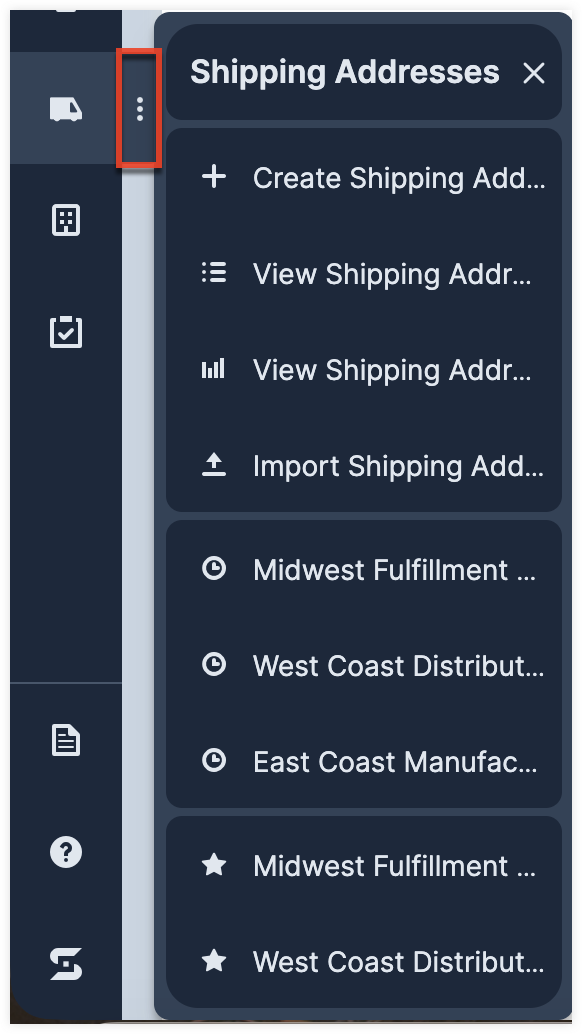
The module tab's Actions menu allows you to perform the following operations:
| Menu Item | Description |
| Create Shipping Address | Opens the record view layout to create a new shipping address. |
| View Shipping Addresses | Opens the list view layout to search and display shipping addresses. |
| View Shipping Address Reports | Displays existing reports based on the Shipping Addresses module. |
| Import Shipping Addresses | Opens the import wizard to create or update shipping addresses using external data. |
For more information on module tab menus including reasons a module may not be included in the menu, see the User Interface documentation.
List View Menus
The Shipping Addresses list view displays all shipping address records and allows for searching and filtering to locate specific shipping addresses. You can view the basic details of each record within the field columns of the list view or click a shipping addresses' name to open the record view. To access a module's list view, simply click the module's tab in the navigation bar.
List View Mass Actions Menu
The Mass Actions menu to the right of the checkbox option in the list header allows you to perform mass actions on all currently selected records. You can use the checkbox on each record's row to select individual shipping address records or click the checkbox in the list header to select all records displayed on the current set of list view results.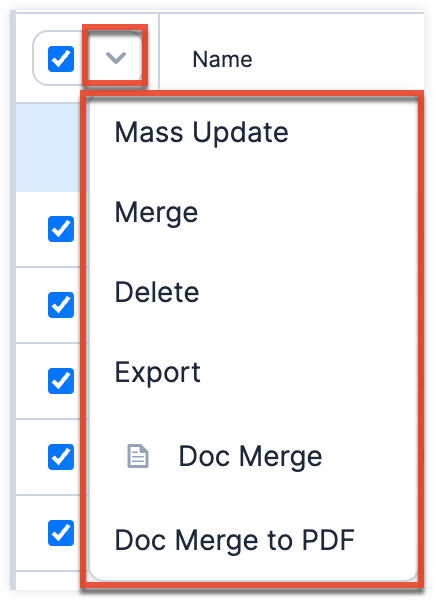
The Mass Actions menu allows you to perform the following operations:
| Menu Item | Description |
| Mass Update | Mass update one or more shipping addresses at a time. |
| Merge | Merge two or more duplicate shipping addresses. |
| Delete | Delete one or more shipping addresses at a time. Note: Shipping addresses with an ERP Integration Sync ID cannot be deleted. |
| Export | Export one or more shipping addresses to a CSV file. |
| Recalculate Values | Visible only if the module contains fields using Sugar Logic and only to System Administrators or users with Developer-level role access, this option will refresh the selected records' calculated values. |
| Doc Merge | Select or create a DOCX template to merge record data into documents that will be accessible in the Doc Merge widget. |
| Doc Merge to PDF | Select or create a DOCX, XLSX, or PPTX template to merge record data into PDF documents that will be accessible in the Doc Merge widget. |
| Map | For instances with Sugar Maps enabled, display this record or the selected records on a map. |
|
For instances with Sugar Maps enabled, plot driving directions on a map from your address to this record or all selected records. |
List View Record Actions Menu
The Record Actions menu to the far right of each record's row allows you to perform actions on the individual shipping address directly from the list view.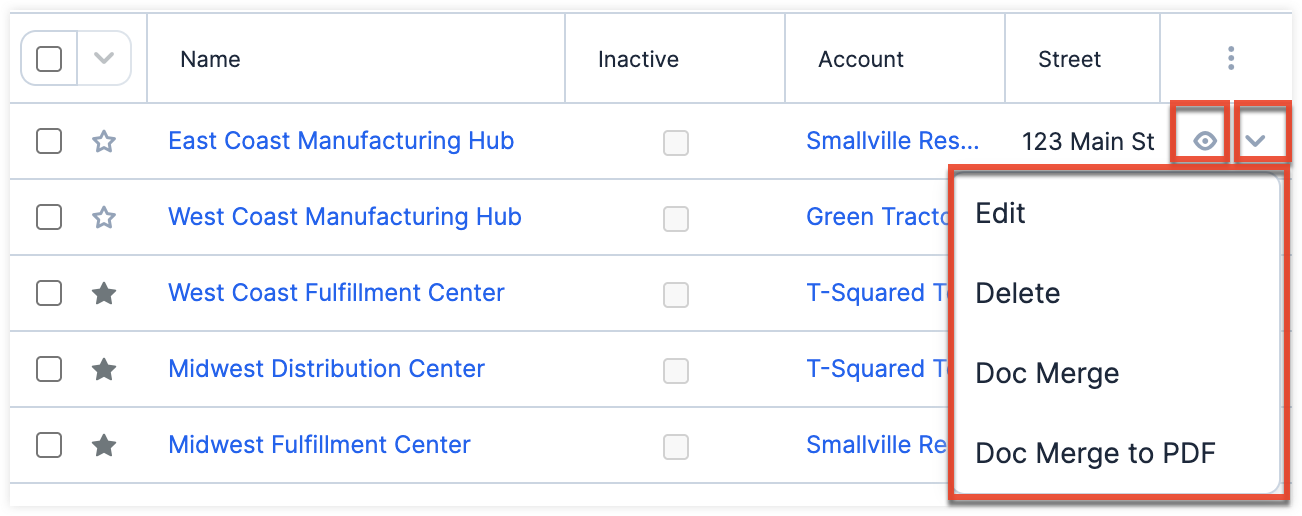
The list view's Record Actions menu allows you to perform the following operations:
| Menu Item | Description |
| Preview (Eye icon) | Preview this shipping address in the intelligence pane. |
| Edit | Edit this shipping address. |
| Directions starting from this record | For instances with Sugar Maps enabled, plot driving directions on a map from this record to another record or records. |
| Delete |
Delete this shipping address. |
| Doc Merge | Select or create a DOCX template to merge record data into documents that will be accessible in the Doc Merge widget. |
| Doc Merge to PDF | Select or create a DOCX, XLSX, or PPTX template to merge record data into PDF documents that will be accessible in the Doc Merge widget. |
Record View Actions Menu
The shipping addresses record view displays a single shipping address in full detail including its fields, subpanels of related records, and activity stream (if enabled). To access a shipping addresses' record view, simply click a hyperlinked shipping address name from anywhere within Sugar. The record view's Actions menu appears on the top right of the page and allows you to perform various operations on the current record.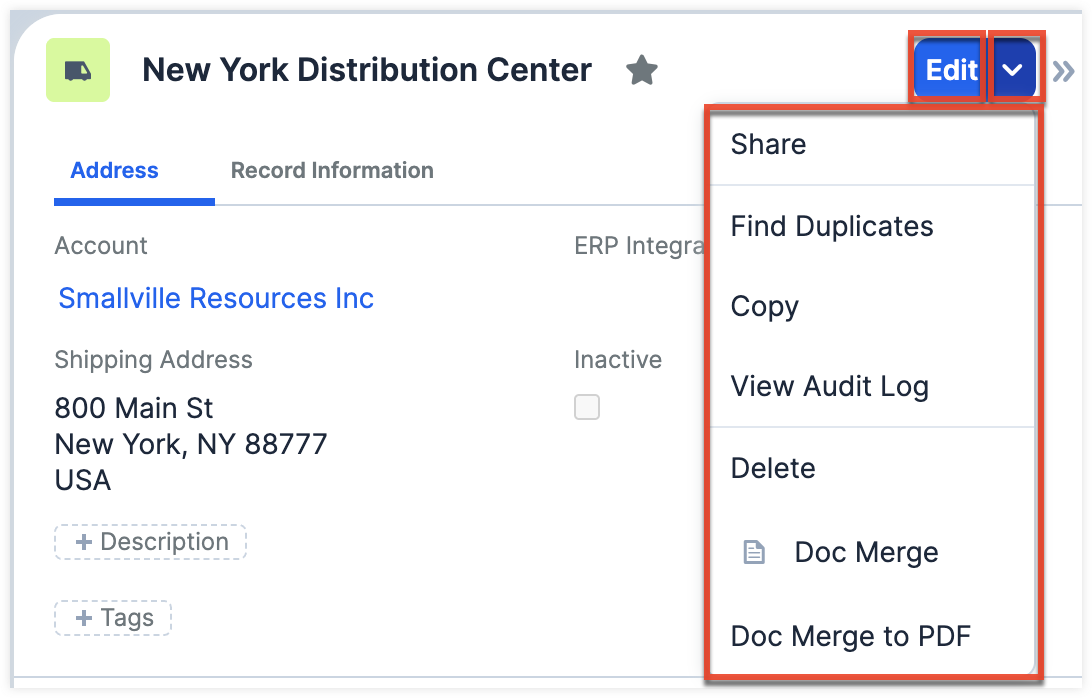
The Actions menu allows you to perform the following operations:
| Menu Item | Description |
| Edit | Edit this shipping address. |
| Share | Share a link to this shipping address via email. |
| Download PDF |
Download the record's information as a PDF file.
|
| Email PDF |
Email the record's information as a PDF attachment.
Note: To send emails through Sugar, users must first configure a default user email account via Emails > Email Settings. |
| Find Duplicates | Locate potential duplicates of this shipping address. |
| Copy | Duplicate this shipping address to create a new shipping address. |
| View Audit Log | View a record of changes to this shipping address. |
| Delete | Delete this shipping address. Note: Shipping addresses with an ERP Integration Sync ID cannot be deleted. |
| Doc Merge | Select or create a DOCX template to merge record data into documents that will be accessible in the Doc Merge widget. |
| Doc Merge to PDF | Select or create a DOCX, XLSX, or PPTX template to merge record data into PDF documents that will be accessible in the Doc Merge widget. |
| Geocode |
For instances with Sugar Maps enabled, manually set this record's location on a map. |
| Map |
For instances with Sugar Maps enabled, display this record or the selected records on a map. |
| Directions starting from Current User |
For instances with Sugar Maps enabled, plot driving directions on a map from your address to this record or all selected records. |
Common Views and Actions
In the table below, the left column contains links to the User Interface page covering topics that are applicable to all Sidecar modules. The right column has links to sections of the current page that cover topics specific to shipping addresses.
| General Instructions for Working With Sugar Modules | Shipping Addresses-Specific Instructions |
| Use the links below to navigate to the User Interface page which covers topics generic to many Sugar modules. | When shipping addresses-specific help exists for each topic, use the links below to navigate to sections of the current page. |
| Creating Records | |
| Viewing Records | |
| Searching for Records | |
| List View | List View Mass Actions Menu List View Record Actions Menu |
| Record View | Record View Actions Menu |
| Intelligence Pane | |
| Editing Records | Marking Shipping Addresses as Inactive |
| Deleting Records | Deleting Shipping Addresses |
| Exporting Records | |
| Recalculating Calculated Values | |
| Finding Duplicate Records | |
| Merging Records | |
| Viewing Record Audit Logs | |
| Record PDFs | |
| Favoriting Records | |
| Sharing Records |