Smart Prompts
Overview
Acts as a proactive advisor, automatically reasoning through existing data to tell sellers where to focus their energy rather than leaving them to identify signals on their own.
Note: Smart Prompt outputs are intended to assist your decision-making, not replace it. Always review the underlying records and apply your own judgment before taking action based on a prompt.
This guide covers using Smart Prompts in SugarAI. For more information setting up AI features in Sugar, please refer to the AI administration guide.
Interacting With Smart Prompts
Smart Prompts appear at the top of your home dashboard in a dedicated section above your other dashlets. Each prompt is displayed as a card, and you may see several of these cards at a time depending on how many prompts are relevant to your current data.
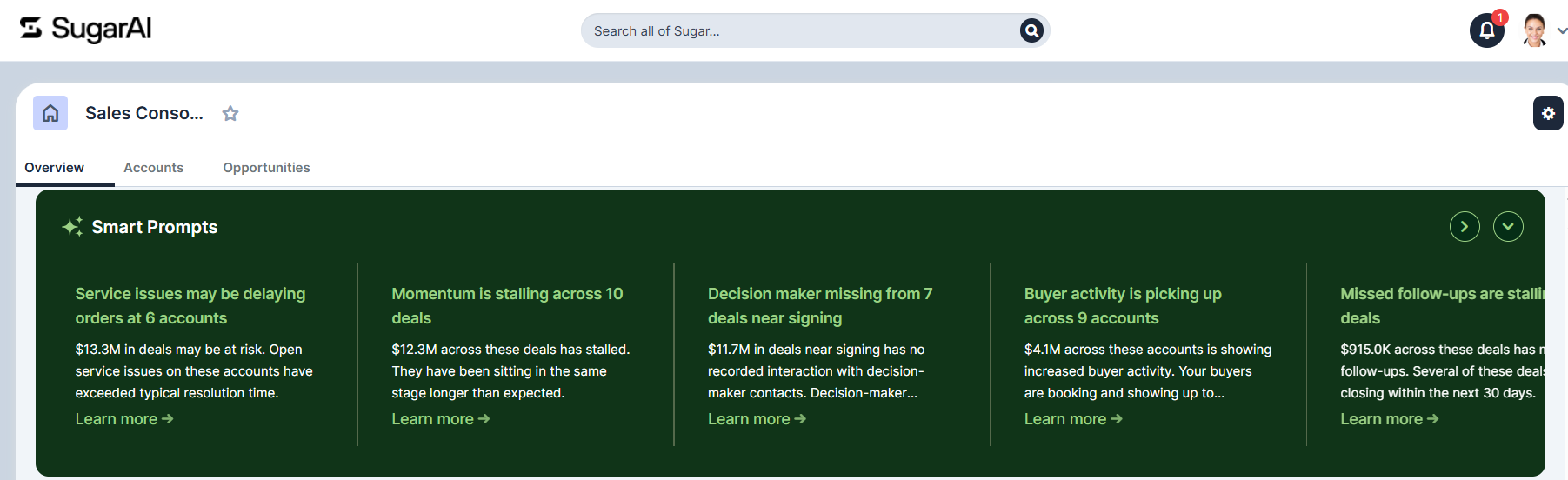
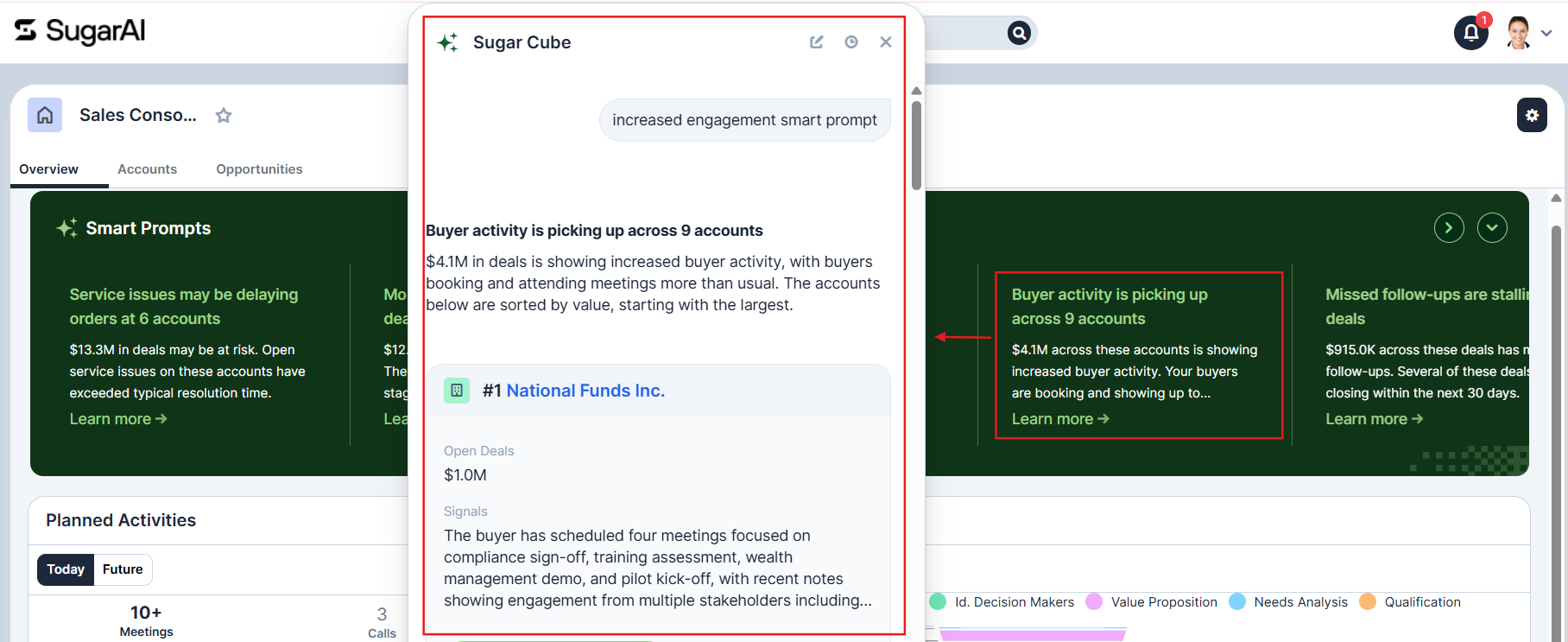
To act on a prompt, click anywhere on the card. This opens Sugar Cube’s conversational chat interface and loads the full AI-generated response for that insight. Depending on your selected Smart Prompt, this response may include a summary of relevant records, context around the situation, and suggested next steps. From the chat interface, users can ask follow-up questions, make additional requests, or continue the conversation naturally.
Performance and background caching: To keep dashboards loading quickly, Smart Prompts are calculated asynchronously in the background when users log in and cached for 24 hours, with automated cache invalidation. This ensures proactive insights are ready without causing dashboard load delays.
Proactive Next Best Actions: When a user clicks into a Smart Prompt card, the expanded chat panel may surface immediate, clickable Next Best Actions, such as scheduling an executive touchpoint, logging a task, or reaching out to stalled accounts, to help resolve the risk or opportunity.
If you have already acted on a prompt and want to see something new, click the “Request New Prompt” icon in the lower-left corner of the card. This replaces the current card with a fresh prompt. If no additional prompts are available for that card, this feature will be disabled until a new Smart Prompt is ready.
Available Smart Prompts
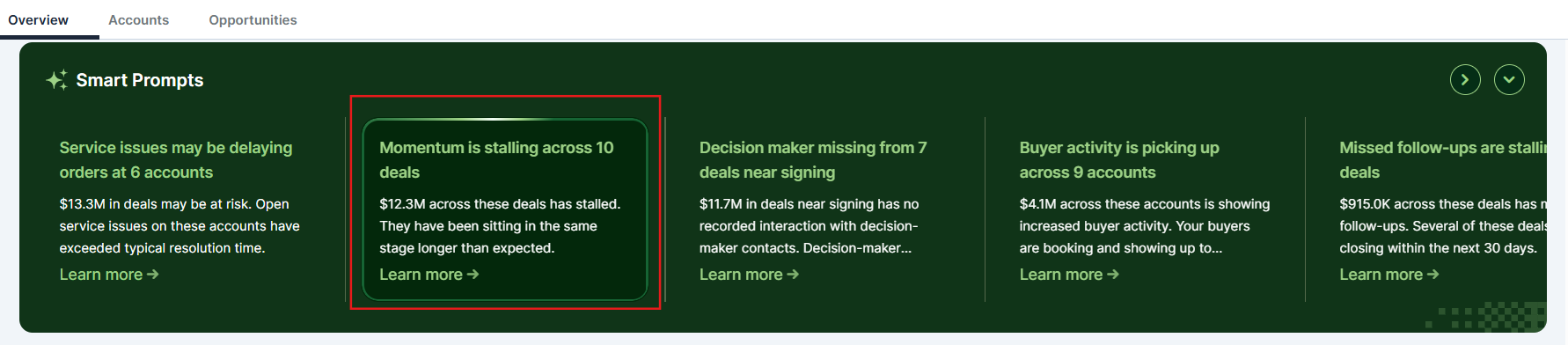
Momentum Risk - Momentum is Stalling Across X Deals
This prompt surfaces open opportunities that are losing forward momentum based on observable CRM signals. It looks at how long each deal has been sitting in its current stage compared to what is typical for that stage, how recently the stage last changed, and how long it has been since any completed activity was logged on the deal or its associated account. Only open opportunities in progress are included, and scheduled activities are not considered.
The response presents a prioritized table of deals, each with a one-sentence explanation citing the specific signals driving the risk, such as the number of days the deal has been in its current stage relative to the typical duration for that stage.
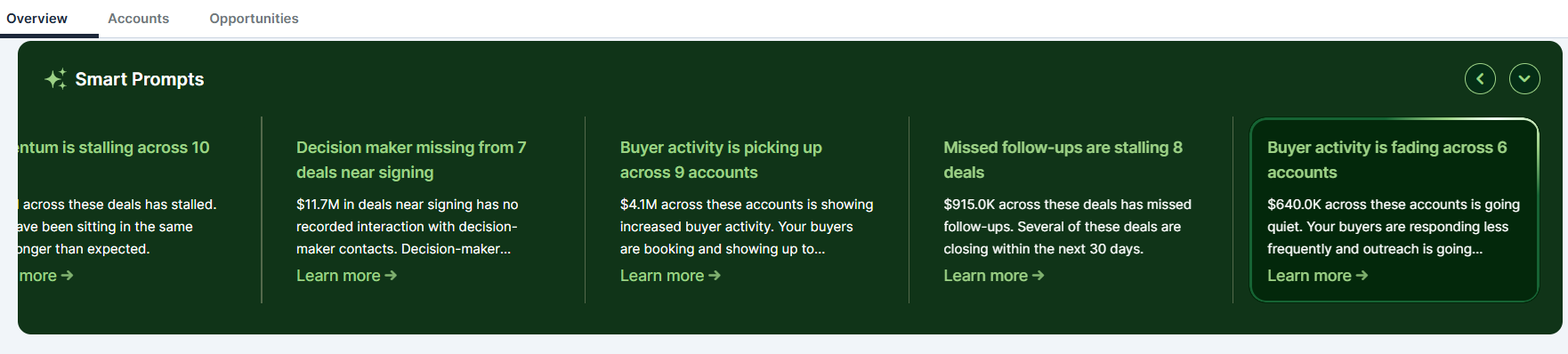
Engagement Risk - Buyer Activity is Fading Across X Accounts
This prompt identifies accounts assigned to you that are showing signs of disengaging, meaning outreach attempts are going unanswered and interaction frequency has dropped below the account's normal baseline. It looks at whether recent outreach has received responses, how activity levels compare to the account's historical pattern, how long it has been since any meaningful interaction occurred, and whether the customer has been initiating or participating in interactions at the same rate as before.
Only completed activities count toward this analysis. Scheduled or planned activities are excluded. Accounts need at least three historical activities to be evaluated, and the analysis looks back up to 365 days for baseline context.
Increased Engagement - Buyer Activity is Picking up Across X Accounts
This prompt surfaces accounts that are showing a meaningful uptick in engagement compared to their normal pattern, such as faster response times, more frequent completed interactions, or an increase in customer-initiated contact. It is the counterpart to Engagement Risk and uses the same underlying signals in reverse, flagging accounts where momentum is building rather than fading.

Executive Sponsorship Needed - Decision Maker Missing From X Deal Near Signing
This prompt identifies late-stage opportunities that are approaching their close date without any recent interaction with executive-level contacts. It looks at whether contacts with executive titles such as CEO, CFO, COO, CRO, or VP have participated in completed meetings, calls, or emails within the recent engagement window. If an executive-level interaction is already scheduled before the opportunity's close date, the prompt will not flag that deal, since you are already addressing the gap. If the scheduled interaction falls after the close date, the record is still flagged.
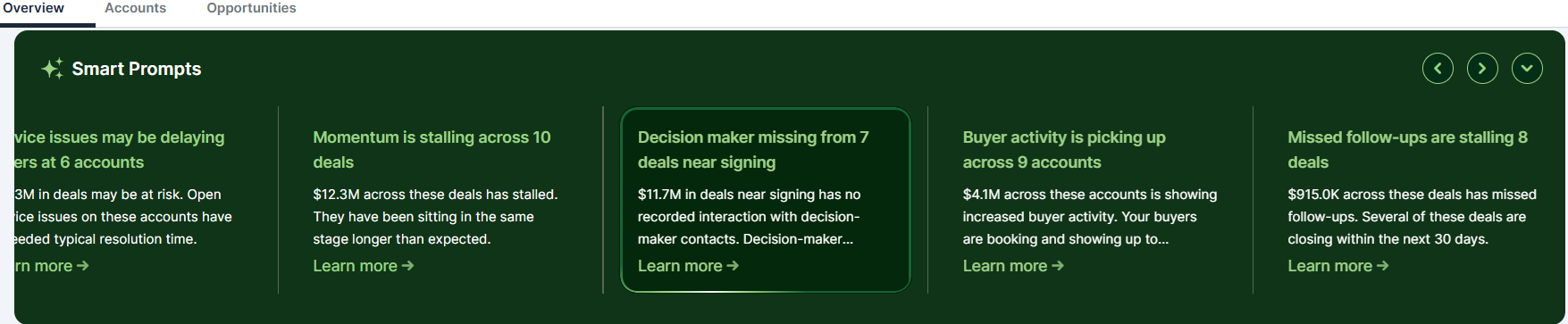
Only open, late-stage opportunities assigned to you are included.
Overdue Activities - Missed Follow-ups are Stalling X Deals
This prompt surfaces incomplete activities that were scheduled in the past and are linked to open opportunities assigned to you. An activity is considered overdue if its scheduled date has passed and its status is Planned, Scheduled, or Not Started. Completed or held activities and anything scheduled in the future are excluded.
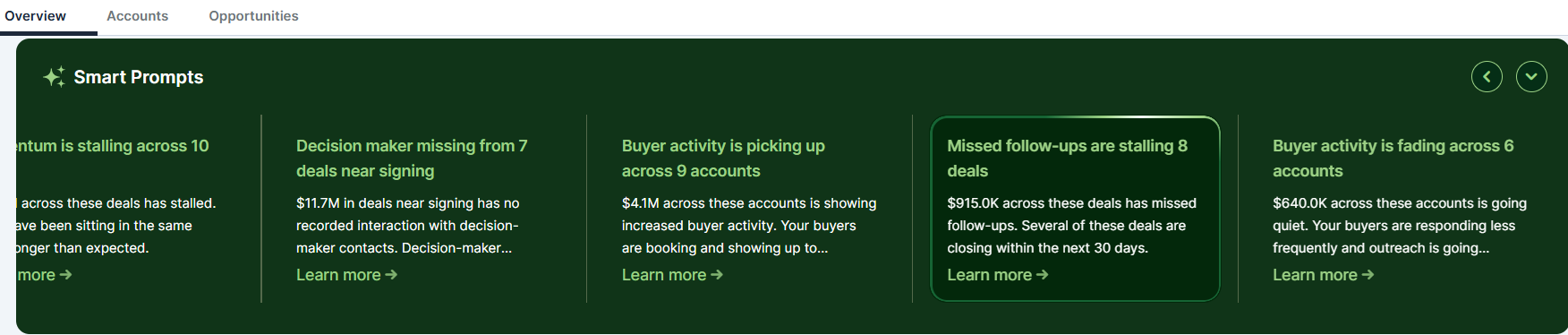
Support Case Risk - Service Issues may be Delaying Orders at X Accounts
This prompt surfaces accounts that have both open opportunities and unresolved support cases that may be putting those deals at risk. It looks at how long the oldest open case has been in an open status, how recently the case has been updated, and how many open cases the account currently has. Accounts are flagged when they have at least one open case and at least one open opportunity in progress and are ordered from most severe to least based on a combination of those factors.
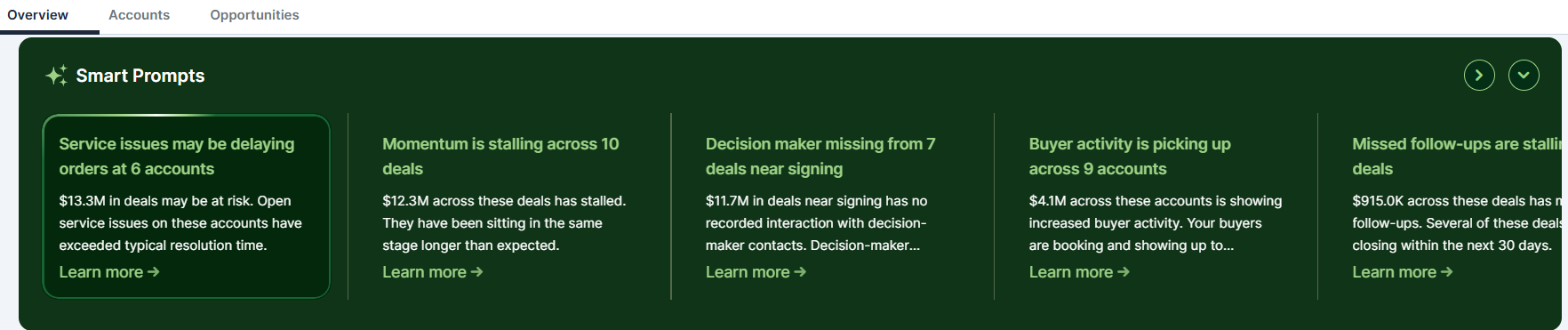
Note that this prompt requires the Cases module (Sugar Serve) to be present in your instance.
Enabling and Disabling Smart Prompts on a Dashboard
Smart Prompts are available by default on the following out-of-the-box dashboards:
-
BDR Dashboard
-
Customer Success Dashboard
-
Executive Dashboard
-
Marketing Dashboard
-
Sales Console
-
Sales Manager Dashboard
-
Sales Rep Dashboard
Dashboard owners can also add Smart Prompts to any new or existing custom dashboard.
To add or remove Smart Prompts from a dashboard:
-
Click the gear icon in the top left of the dashboard, directly to the right of the dashboard name and beside the filter icon.
-
Check or uncheck the “Include Smart Prompts” checkbox.
-
Select “Save”.
This setting carries over when a dashboard is shared or duplicated. Users who are assigned a shared dashboard with Smart Prompts enabled will see them, as long as they have the proper AI permissions.
Note: Smart Prompts are off by default on pre-existing dashboards and must be turned on manually by the dashboard owner.
Manager’s Experience
Smart Prompts look into the user’s own data. As a manager, you cannot see your team’s data in Smart Prompts.