Sugar Cube
Overview
Sugar Cube is an embedded AI assistant that gives sellers answers about their accounts, pipeline, and activity without having to dig through menus or reports. Sellers can search for information, get context, and guidance on next steps, all by asking in plain language.
This guide covers using Sugar Cube in SugarAI. For more information setting up AI features in Sugar, please refer to the AI administration guide.
Opening-State Messaging
When you first open Sugar Cube, a welcome message introduces the main capabilities available to you. The message explains: "You can explore data, get insights, prepare for meetings, create reports, and more" — providing a quick overview of what Sugar Cube can help you accomplish.
Three suggested example questions appear below the greeting to help you get started:
-
"What should I work on today?" - To prioritize your tasks and focus on high-impact activities
-
"Help me prepare for my meeting with [Account Name]" - To quickly generate a meeting brief with key talking points
-
"Show me deals worth over $50,000" - To explore and filter your data using natural language
This guidance appears each time you start a new conversation in Sugar Cube, providing consistent access to suggested requests that help orient new and returning users to the system's capabilities.
Interacting With Sugar Cube
To begin interacting with Sugar Cube, click the collapsed pill on any screen in SugarAI to expand the chat window. Here, you may select a suggested request or ask Sugar Cube about your SugarAI data in your own words. Each time you open Sugar Cube, it starts a new conversation by default, so an earlier and unrelated exchange does not affect your next question, but past interactions are always accessible via the chat history. Sugar Cube has a breadth of useful functionality to help you use SugarAI to its fullest potential. The following sections provide a detailed breakdown of what Sugar Cube can do for you.
Privacy and data redaction: To safeguard sensitive data, Sugar Cube automatically applies reversible Personally Identifiable Information (PII) redaction before sending context to the language model. When responses are rendered back in the CRM interface, identifiers are securely restored so users see clean, contextual information without exposing sensitive customer data to external processing.
Summary of Sugar Cube’s Capabilities
Unlike traditional sales tools, Sugar Cube dynamically adapts to your unique SugarAI data, enabling you to quickly find answers, uncover insights, and enhance your overall experience through a broad set of capabilities described in this guide. Sugar Cube also respects your current SugarAI user-level permissions, ensuring administrators always have the final say in what kind of data can be surfaced to end-users. Because Sugar Cube is able to engage with a wide variety of requests, the table below categorizes and showcases practical ways to begin making the most of your conversational AI experience.
Note: To maintain focused, productive chat interactions, Sugar Cube will not answer questions unrelated to SugarAI.
|
Request Category |
Example Request |
Explanation |
|
Capability summary |
What can you do for me? |
Sugar Cube is able to understand and act on a wide variety of requests. Simply asking what Sugar Cube is capable of generates a high level summary of all available capabilities as well as suggested requests for each. |
|
How do I convert a lead into a contact? |
Sugar Cube is trained on information available on the SugarAI support site, allowing it to reference existing documentation to provide guide-like instruction on SugarAI processes. For more information, see the How-To section. |
|
|
What should I work on this week? |
Sugar Cube analyzes your SugarAI records and prioritizes tasks based on upcoming due dates, and expected close dates. |
|
|
What should I do next to move this deal forward? |
Sugar Cube provides insights into deal activity and records related to your deals while surfacing actionable recommendations based on your SugarAI records. |
|
|
Help me summarize my accomplishments for the week. |
Sugar Cube evaluates tasks, meetings, calls, and opportunity records to provide a high-level overview of your work for reference, and reporting purposes. |
|
|
What opportunities related to the Acme Corp. account are expected to close this week? |
Sugar Cube performs database queries based on field-level values in your CRM to surface records. |
|
|
Help me prepare for my meeting with Acme Corp. |
Sugar Cube evaluates past interactions, and records related to your meeting guests to provide a focused brief for your upcoming and held meetings. For more information, see the Meeting Preparation section. |
|
|
What’s the correct process for escalating a high-priority customer issue? |
Sugar Cube evaluates documents in your organization’s own Knowledge Base to provide guide-like instruction on policy, standard operating procedure, and internal processes. |
|
|
Give me a report on how my pipeline is looking broken down by stage
|
Sugar Cube builds custom reports based on criteria you provide conversationally that you can save to your dashboard for future reference. |
How-To Information
Sugar Cube is designed to help you quickly learn how to use SugarAI without navigating away from your CRM. By leveraging content from the Sugar Support site, Sugar Cube can provide step-by-step guidance, answer “how-to” questions.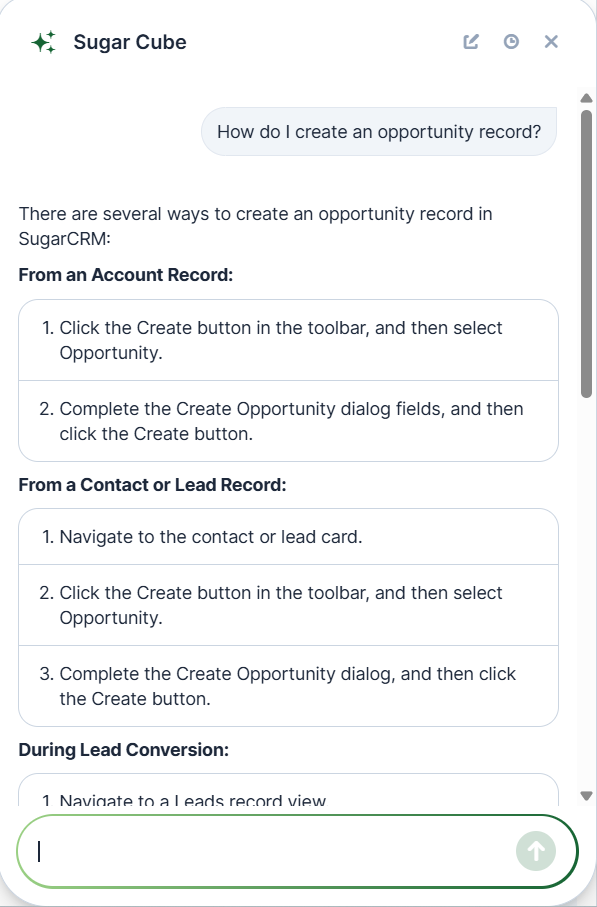
When you ask a question related to product functionality (e.g. “How do I create an opportunity?”), Sugar Cube searches the Sugar Support site and returns a response based on the most relevant documentation.
Prioritize Tasks
Sugar Cube’s task prioritization functionality helps you stay focused on the most important work by analyzing your SugarAI data in real time. By evaluating due dates, expected close date, past-due items, and other high-priority records across all of your SugarAI modules, Sugar Cube generates a prioritized view of what requires your attention.
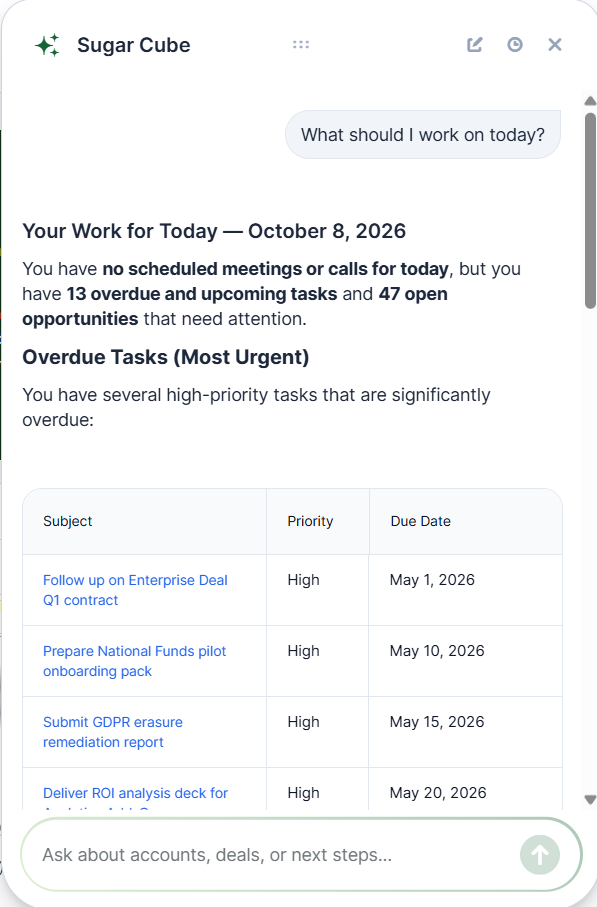
Users can ask questions such as “What should I work on today?” or “What tasks are due this week?” and receive tailored recommendations based on your current workload and pipeline activity. This allows you to quickly identify urgent and high-impact items, helping ensure that critical tasks and opportunities are addressed efficiently and on time.
When asked to prioritize activities, opportunities, and tasks, Sugar Cube will provide an ordered list, an explanation for each prioritized item, and insightful “priority tips” to give users advice on how to approach these records.
Stay on Top of Your Deals
Sugar Cube’s ability to analyze your opportunity records provides real-time visibility into your opportunities by analyzing activity history, deal status, and expected close dates within your SugarAI data. It enables you to quickly understand the current state of your deals and identify those that require attention.

Using natural language questions such as “What’s the latest activity on this deal?”, “What should I do next to move it forward?”, or “Which deals are expected to close this month?”, Sugar Cube delivers contextual answers and actionable recommendations.
Summarize Your Accomplishments
Sugar Cube’s accomplishment summary functionality provides a consolidated view of your completed work by analyzing your SugarAI activity and records. When a user specifies which records to consider, Sugar Cube can evaluate closed-won opportunities, completed tasks, held meetings and calls, and other relevant activity to generate a summary of your contributions over a given period.
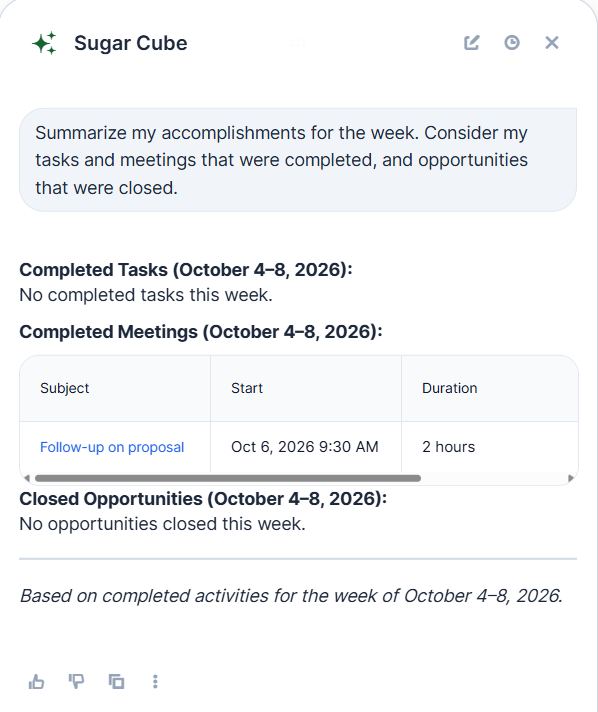
By making requests such as “What did I accomplish this week? ”, Sugar Cube delivers a structured overview that can be used for personal reference, performance reviews, or reporting purposes. Referenced records, such as completed tasks, held meetings, and closed opportunities, appear as clickable links that open the corresponding record.
Explore Your Data
Sugar Cube’s ability to understand general questions relevant to SugarAI allows you to quickly access and explore your SugarAI records using natural language. By evaluating field-level values across all modules in your CRM, Sugar Cube can surface relevant records based on criteria such as deal size, status, ownership, dates, and more.
Users may ask questions like “Show me deals worth over $50,000” or “Which opportunities are closing this month?” and receive targeted results without needing to build manual filters or reports.
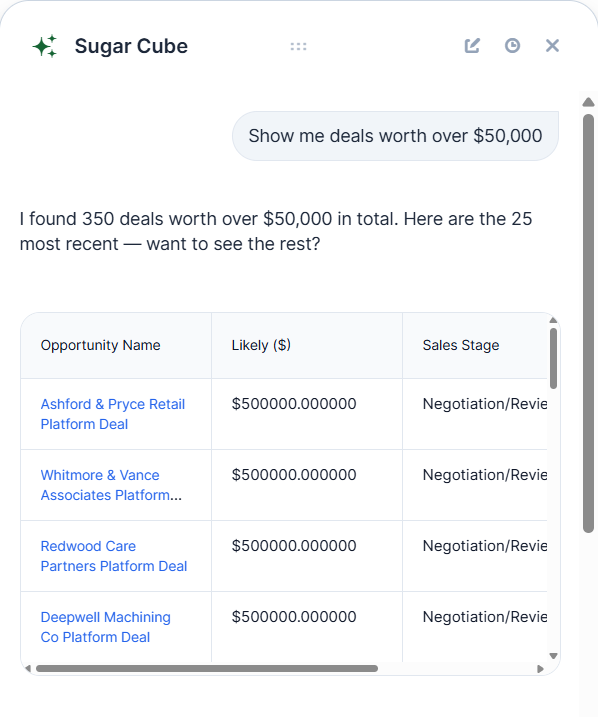
Users may then dive deeper into these records by asking clarifying questions, asking for advice on how to progress those records (if applicable), or asking about related records. When answering, Sugar Cube briefly explains what it searched for and whether it found the record and any related data. For example, it might tell you it located an account but found no related opportunities, so you can see how your question was interpreted.
Prepare for Meetings & Meeting Follow-up
Sugar Cube’s meeting preparation functionality is designed to help you walk into every meeting confident, informed, and ready to have meaningful conversations; while reducing the time you spend on research and preparation. To help you prepare, Sugar Cube leverages account data, guest information, opportunity details, and past interactions, enabling it to support you more effectively as your CRM data grows.
By making a simple request such as “Help me prepare for my meeting with Acme Corp”, Sugar Cube automatically gathers and organizes information relevant to that meeting into three categories:
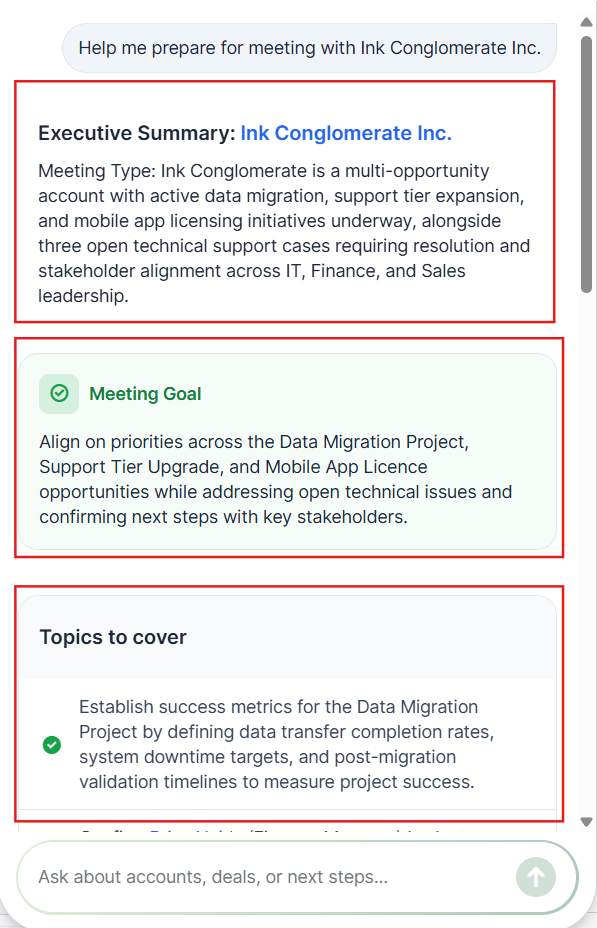
Executive Summary: Displays the account related to your meeting and the type of meeting based on data from the meeting record.
Meeting Goal: Suggests the general goal of the next meeting.
Topics to cover: Suggests productive topics to cover during your meeting
Sugar Cube also provides unique “Pro Tips” for your meeting preparation. These range widely from targeted sales advice to proactive next steps you can take on active deals related to your meeting guests or accounts.
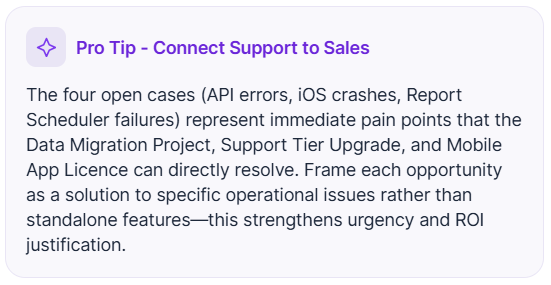
Today's Meetings quick prompt: Users can ask Sugar Cube “What meetings do I have today?” or “Prepare for today's meetings”. Sugar Cube scans scheduled meetings, filters to meetings where the user is an organizer or invitee, and provides a quick briefing for each upcoming session in chronological order.
Previous conversation and attendee context: Meeting prep can pull in recent interaction notes, past call summaries, and attendee details from related account and opportunity records. For late-stage deals, Sugar Cube may also evaluate qualification criteria, such as MEDDPICC milestones, to suggest talking points that address missing qualification items.
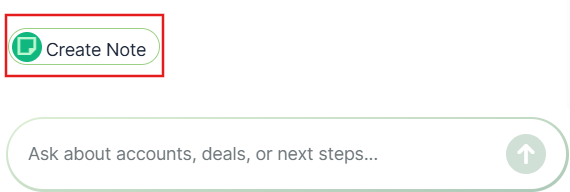
Users may select “Create Note” near the bottom of Sugar Cube’s meeting preparation response to automatically save the meeting prep as a note to the account or contact related to your meeting. Users may also select “Export Meeting Prep as PDF” to generate a formatted standalone PDF brief for review or sharing.
Best Practices for Meeting Preparation
Before the meeting:
-
Open Sugar Cube 10-15 minutes before your meeting
-
Ask "Help me prepare for my meeting with [Account Name]"
-
Review the Pro Tips - These often contain deal-specific insights
-
Note down action items you want to discuss
-
Optionally save the brief to meeting notes
During the meeting:
-
Reference key points from your prep brief
-
Ask Sugar Cube follow-up questions if new information emerges
-
Take notes on commitments and next steps
After the meeting:
-
Ask Sugar Cube "What follow-ups should I do from my meeting with [Account Name]?"
-
Use "Save to Notes" to attach meeting prep to the account record
-
Create tasks for any action items Sugar Cube identifies
-
Share the brief with your manager or team if relevant
Meeting Follow Up
Sugar Cube’s meeting assistance does not stop after your meeting has been held. After your session concludes, users can ask Sugar Cube to generate a concise summary along with key takeaways, ensuring nothing important is missed. Users may also ask Sugar Cube to draft a follow-up email to your meeting guests, helping you maintain momentum and communicate next steps efficiently.
Refining & Clarifying Requests
If your question is ambiguous or could be interpreted multiple ways, Sugar Cube may present clarifying options before generating a response. These options help ensure Sugar Cube returns exactly what you're looking for. Review the options provided and select the interpretation that matches your intent, or ask a follow-up question to provide more context.
Next Actions in Meeting Prep
After receiving your meeting brief, you can ask Sugar Cube to show you additional upcoming meetings for the same contact or account. Ask: "What other meetings do I have with Acme Corp?" or "Show me all meetings with John Smith this month" to see a chronological list of future scheduled meetings, helping you plan your long-term relationship strategy.
Understanding Sugar Cube’s User Interface
While not in use, Sugar Cube takes the form of a non-intrusive, collapsible pill on the right side of any screen in your CRM. Hovering over this pill will allow you to drag and drop it anywhere on your screen for your convenience. Clicking the collapsed pill will expand it into Sugar Cube’s conversational chat interface.

Conversational Chat Interface
When expanded into the conversational chat interface, Sugar Cube will greet the user, provide a brief explanation of ways that Sugar Cube can assist you, and provide three example requests to help you begin utilizing Sugar Cube’s capabilities.
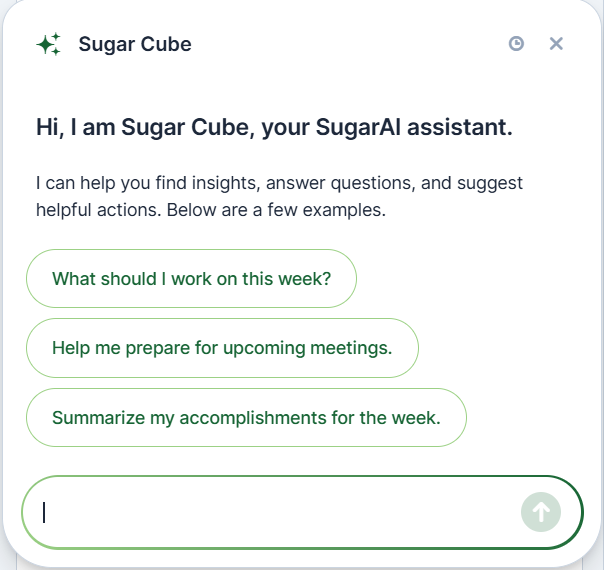
Initially, Sugar Cube’s conversational chat interface includes the following elements:
|
Element |
Functionality |
|
 |
Click and drag this element to reposition the chat window. |
 |
Click to view your chat history with Sugar Cube. |
 |
Click to collapse the chat window. |
|
 |
Click anywhere inside the bar to begin typing a message to Sugar Cube. |
|
 |
Click to send a message in your conversation with Sugar Cube. Alternatively, you may press “Enter”. |
 |
Click to stop Sugar Cube’s chat response. |
Additional Chat Elements
When working with Sugar Cube, some additional chat elements may become available to use based on the context of your conversation.
Below Sugar Cube’s chat responses, the following options are available:
Thumbs-Up: Rates your chat interaction as positive.
Thumbs-Down: Rates your chat interaction as negative.
Copy: Copies your current chat conversation to your clipboard.
Export as PDF: Saves your current chat conversation as a PDF for export.
Paginated Chat History: Users can scroll back through previous conversations and historical sessions. Sugar Cube loads previous chat history in paginated increments as users scroll up.
Copy Conversation to Clipboard
The Copy button allows you to copy your entire chat conversation to your clipboard, making it easy to share findings with colleagues or include in documents.
What Gets Copied:
-
Your questions and requests
-
Sugar Cube's complete responses
-
Charts, tables, and formatted data
-
Timestamps and conversation flow
Use Cases: Paste into an email to share findings with colleagues, add to a document or presentation, create a record of important requests and answers, or share meeting prep or deal insights with your team.
Enhanced Chat Interactions
Sugar Cube provides several interactive elements within chat responses to help you work more efficiently:
-
Clickable Record Links: All record names in Sugar Cube responses are automatically clickable. Click account names like 'Acme Corp' to open the record directly, or click any opportunity, contact, or other record reference to navigate directly to that record.
-
Security: Deceptive Link Protection: Sugar Cube automatically detects and blocks deceptive links (hidden-destination URLs designed to appear legitimate) from being converted to clickable links in responses. This protects you from accidentally clicking malicious URLs. You will see such links displayed as plain text instead of clickable elements.
-
Copy to Clipboard: The Copy button copies the entire conversation to your clipboard for easy sharing in emails or documents.
-
Display Labels: Complex data is presented with clear labels and formatting. Dates, currency amounts, and fields are consistently formatted for readability.
-
Date and Currency Handling: Sugar Cube automatically interprets dates in your questions and formats currency using your system's configured symbols and decimal places.
Sugar Cube Limitations
While Sugar Cube provides powerful conversational capabilities, there are important limitations to understand:
-
Cannot create, update, or delete CRM records: Sugar Cube is designed for data exploration, insights, and guidance only. It cannot modify your CRM data directly. Any changes to records must be made manually through the standard CRM interface.
-
Cannot perform administrative or configuration actions: Sugar Cube does not have access to administrative functions such as user management, system settings, or security configurations. Administrative tasks must be handled by authorized administrators through the appropriate administration panels.
-
Should not be used as a source of record without validation: While Sugar Cube provides AI-generated insights and answers, all information should be independently verified against your underlying CRM data before being used for critical business decisions or customer-facing communications.
-
English language support only: Sugar Cube currently supports natural language requests in English only.
-
Questions must be related to SugarAI: Sugar Cube is designed to assist with SugarAI-related tasks and data. Questions unrelated to SugarAI product functionality or your CRM data will not be answered.
-
Export Meeting Prep as PDF: The ability to export meeting preparation documents as PDF files has been removed. Users can still access meeting prep information within Sugar Cube and can copy or screenshot the content as needed.
AI Analytics
AI Analytics extends Sugar Cube's conversational experience so you can build reports in plain language and instantly get charts, tables, and summaries. It interprets intent and generates insights on demand, so sellers get answers when they need them.
Like the rest of Sugar Cube, AI Analytics respects current SugarAI user-level permissions. Administrators always have the final say in what data can be surfaced to end users.
Creating a Report
To create a report, open Sugar Cube by clicking the collapsed pill on any screen in your CRM, then ask for the insight you want in your own words. Sugar Cube evaluates the records in your CRM that fit the criteria in your request and surfaces them in a report chart.
Example requests:
-
“Give me a report on how my pipeline is looking broken down by stage ?”
-
“I want to see which lead sources we are converting best this year. Show this to me in a report”
-
“Give me a chart on how many deals I have won this year and how is it trending by month?”
-
“Give me a report on which industries (market segments, company sizes, or products) I am selling to the most?”
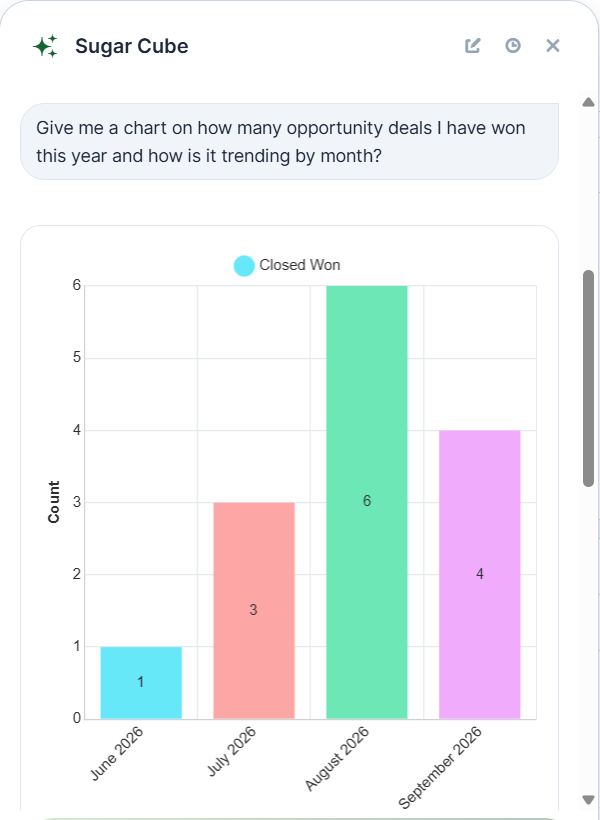
Because Sugar Cube interprets natural language, you do not need to select modules, build filters, or configure a report definition manually. You can describe the grouping, time frame, or metric you care about, and Sugar Cube will translate that into the appropriate query against your data.
Report Blocks and Interactive Features
Sugar Cube reports contain different types of blocks, each with its own interactive capabilities:
Chart Blocks - Click "Expand" or "View Data" icon to open a full data flyout panel. The flyout displays underlying records in an interactive, sortable table. Audit individual accounts, opportunities, or activities contributing to the chart. Sort by any column to reorder results. Filter within the flyout for deeper analysis.
Data Table Blocks - Displays data in row and column format. Sortable columns—click column headers to sort ascending/descending. Click the "Expand Flyout" icon for a larger view with more options. Right-click rows to see available actions (create follow-up task, etc.)
Paragraph Blocks - Contain explanatory text or summary information. May include formatted numbers, dates, and values. Clicking values sometimes shows additional context. Copy text blocks with the "Copy" button.
Each block type is designed to present information in the format most useful for that data. Charts work best for trends, tables for detailed records, and paragraphs for summaries and context.
Report Chart Types
Sugar Cube automatically selects a chart type that fits the shape of your question and the data returned.
Where a chart is not the most useful format for your request, Sugar Cube may return the results as a sortable table or as record cards instead, so you always receive the clearest representation of your data.
Data flyout and interactive record tables: When viewing a report chart, users can click the Expand or View Data icon to open the full flyout panel. This displays underlying detailed records in an interactive, sortable data table, enabling users to audit individual accounts, opportunities, or activities contributing to the chart.
Refining Your Report
After Sugar Cube generates a report, you can adjust it through natural follow-up messages without starting over. Cube keeps the report's measure, grouping, filters, and time range in place and applies only the change you ask for. You can:
-
Change the chart type (e.g. "show this as a line chart instead")
-
Add or remove a filter (e.g. "only include the EMEA region")
-
Drill into a subset (e.g. "break this down by sales rep")
-
Step back up to a higher level (e.g. "go back to the regional totals").
-
Group by related module fields: Ask to group metrics by fields located in linked modules, such as “Show my pipeline grouped by Account Industry” or “Group won deals by Primary Contact Department”.
-
Complex metric calculations: Request computed rates such as “What is our quarterly opportunity win rate?” or “Show average sales cycle length by lead source”.
Each follow-up builds on the current report rather than creating a new one.
Sugar Cube may also present suggested actions and “Next best actions” beneath a response as quick options you can select to explore the data further or take a logical next step.
Default Time Ranges for Transactional Data
When you ask Sugar Cube for analytics on transactional data — such as opportunities, revenue line items, quotes, cases, or activities — the system automatically applies a time range to keep queries fast and meaningful. You never have to wonder if your report is pulling years of history or just what you intended.
How Default Time Ranges Work
Automatic Default: When you don't specify a time range in your request, Sugar Cube applies a default based on your organization's calendar settings:
-
If your organization has a fiscal calendar configured, the default is the current fiscal quarter
-
If no fiscal calendar is configured, the default is the current calendar quarter
Example: If you ask "Show me my opportunities broken down by stage," Sugar Cube automatically returns opportunities from the current quarter, not all-time history.
Supported Time Range Formats
You can override the default by specifying any of these time range formats in your request:
-
YTD: Year-to-date (from January 1 to today, or fiscal year equivalent)
-
QTD: Quarter-to-date (from the start of the current quarter to today)
-
MTD: Month-to-date (from the start of the current month to today)
-
Relative periods: "last quarter," "this year," "last 3 months," "last 6 months"
-
Custom ranges: Specific date ranges like "January 1 to March 31, 2026"
Examples:
-
"Show me all closed-won deals this year" (YTD)
-
"How many opportunities did I close last quarter?" (Last fiscal quarter)
-
"Give me revenue by product for January through March 2026" (Custom range)
Viewing and Changing the Time Range
After Sugar Cube generates a report, the applied time range is clearly displayed in the report response, so you always know exactly what time period you're looking at. You can change the range at any time:
-
From the Refine panel: The time range filter appears pre-populated with the applied range, and you can click to switch between QTD, MTD, YTD, this year, last year, or enter a custom range
-
Through follow-up prompts: Simply ask "Show me this for last quarter instead" and Sugar Cube will re-run the report with the new time range
-
Persistent within the conversation: Once you set a time range explicitly, it carries forward to follow-up questions on the same dataset, so you don't have to repeat it
Fiscal vs. Calendar Quarters
If your organization uses a fiscal calendar, all quarter and year references in your requests are interpreted using your fiscal calendar:
-
Calendar quarters: Q1 = Jan–Mar, Q2 = Apr–Jun, Q3 = Jul–Sep, Q4 = Oct–Dec
-
Fiscal quarters: Depend on your organization's fiscal year settings (e.g., if your fiscal year starts July 1, Q1 = Jul–Sep, etc.)
-
"Last quarter" = The previous complete quarter (either calendar or fiscal, depending on configuration)
-
"This quarter" = Quarter-to-date in the current quarter
Why Time Ranges Matter
Applying default time ranges ensures that:
-
Reports run faster — queries return results from a bounded set of data rather than scanning years of history
-
Results are meaningful — you see data relevant to your current business period, not outdated information
-
You stay in control — the applied range is always visible, and you can override it at any time
Manager’s Experience
Managerial questions regarding “my team” and “my reports” are not supported. However, you can group a report by sales rep, and also filter the report by sales rep. The grouping and filter options are not limited to the sellers in your team but to all users you have access to.
Saving a Report to Your Dashboard
Once you are satisfied with a report, you can save it to a dashboard for future reference, so the insight is available at a glance without having to ask for it again. Saved charts behave like other dashboard content and can be revisited each time you return to your dashboard.
To save a report to your dashboard:
-
In the report response, select “Save to Dashboard”. Note: This option is only available if you have access and permissions to edit reports.
-
In the resulting window, review the report name. It is pre-filled with the name from your conversation, or with "Report (current date)" if the report was not named. Edit this field if you would like a different name.
-
Choose the home dashboard to save the report to. If you started the conversation from a home dashboard, that dashboard is selected by default; otherwise, select one of the home dashboards you own, or create a new one.
-
Select "Create". Sugar Cube adds the report as the last dashlet on the chosen dashboard, with its filters applied automatically.
After these steps are completed, a confirmation message appears, (e.g., "Saved [report name] to dashboard [dashboard name]"), with a View dashboard link. The link does not appear if you saved the report to the dashboard you are already viewing.
If you already own a report that matches the one you are saving, Sugar Cube asks you to confirm before creating a second copy.
Understanding Report Responses
While Sugar Cube prepares a report, it displays a brief loading state and, depending on the complexity of your request, status messages. Parts of the response may appear progressively. A placeholder is shown for each element (such as a chart or table) and is replaced as that element finishes, so you can begin reviewing results before the full response is complete.
If Sugar Cube is unable to complete a request, it presents an error message. Some errors are recoverable and include a retry action so you can try again; others indicate that the request could not be completed as asked, in which case rephrasing your question or narrowing the criteria often helps.
Exporting Report Data
Reports generated in AI Analytics support multiple export options for sharing and analysis:
-
Export underlying data as CSV or other formats for use in external tools
-
Copy report data and formatting to clipboard for pasting into presentations or documents
-
Detailed step-by-step process for saving reports to your dashboard is available in the "Saving a Report to Your Dashboard" section
Providing Feedback
Users can select the thumbs-up or thumbs-down symbol at the bottom of Sugar Cube’s chat response to rate any interaction. Once either rating is selected, users will be presented with several general reasons for your rating, as well as a space to enter additional comments if the reason for your rating isn’t among the provided options, or if you’d like to provide additional context for your rating.

Feedback provided for Sugar Cube’s responses will be reviewed and used to improve Sugar Cube’s functionality.
Customer Context
Sugar Cube can ground its answers in your organization's Knowledge Base. Articles marked “Available to Sugar Cube” are included, regardless of publication status, and Sugar Cube references the latest revision of each article when answering related questions.
Using hybrid semantic search, Sugar Cube understands natural-language intent and concepts, not just exact keyword matches. This allows it to find relevant answers even when user phrasing differs from the article text.
Each Knowledge Base article has an “Available to Sugar Cube” field that controls whether Sugar Cube can use it. When the field is enabled, the article informs Sugar Cube's answers regardless of its publication status, so useful internal content can support answers without being published for direct reading. When it is disabled, Cube does not use the article, even if it is published. Changing an article's status does not change this field, and every change is recorded in the article's change log with the user and timestamp.
To manage content in bulk, use the “Available to Sugar Cube” field from the Knowledge Base list view, where it is available as a column, a filter, and a Mass Update option, so you can bring an entire category of articles into or out of Cube's reach at once. Mass Update follows existing permissions, so records you cannot edit are not changed.
Source article links and citations: Whenever Sugar Cube provides an answer derived from an internal Knowledge Base article, it includes direct clickable links to the source article or articles so sellers can verify policy details or review the complete source content.
Content quality tip: Sugar Cube respects user permissions and roles. Users only see answers drawn from Knowledge Base content they are authorized to access. For the clearest results, activate content that is broadly applicable to the intended audience. For example, avoid activating multiple regional versions of the same policy unless those versions are clearly differentiated and relevant to the users who can access them.
Administrator Settings
Managing Chat Permissions
Administrators can control which users have access to specific chat features through permission settings:
-
Export/Copy Button Permissions: Control whether end users can export chat responses to PDF or copy conversations to their clipboard. This helps manage data governance and information sharing policies.
Widget Controls & Customization
The Sugar Cube chat widget can be customized for user convenience:
-
Widget Resizing: Users can resize the Sugar Cube chat window by dragging the window edges to make it larger or smaller based on their preference and screen space availability.
-
Widget Positioning: The collapsible pill can be repositioned anywhere on your screen by dragging it. Elements within the chat window can be displayed and accessed efficiently within the available space.
-
Widget Controls: The chat pill shows 'Sugar Cube' and has a collapsible arrow - click to expand/collapse the chat window as needed.
-
Chart Expansion: In report responses, click the "Expand" or "View Data" icon on any chart to open a full flyout panel showing underlying detailed records in an interactive, sortable data table.
Customizing Welcome Messages
Administrators can personalize the opening-state message that users see when they first open Sugar Cube.
What you can customize:
-
Opening greeting
-
Company-specific tips
-
Suggested example questions
-
Call-to-action messaging
How to customize (Admin only):
-
Go to Administrator Settings → Sugar Cube Configuration
-
Locate the "Opening State Message" section
-
Edit the greeting text, tips, and example questions
-
Click "Preview" to see how it will appear to users
-
Click "Save" when satisfied
Configuring Export and Copy Permissions
Administrators can control whether users can export or copy their Sugar Cube conversations.
Permission options:
-
Allow export to PDF - Users can download conversations as PDF files
-
Allow copy to clipboard - Users can copy chat text
-
Both enabled - Users have full flexibility (default)
-
Both disabled - Users can only view conversations within Sugar Cube
How to configure (Admin only):
-
Go to Administrator Settings → Sugar Cube Permissions
-
Find "Export and Copy Controls"
-
Check or uncheck the options based on your security policy
-
Click "Save" - Changes apply to all users immediately
Save to Notes Functionality
After using Sugar Cube for meeting prep or other tasks, you can save the response as a note directly to the related account or contact record by clicking the "Create Note" button in the response. This ensures your preparation work is permanently recorded and accessible from the account/contact record.
Save Sugar Cube Responses to Records
After getting information from Sugar Cube, you can save the response directly to an account, contact, or other related record as a note.
When to Use "Save to Notes":
-
Save meeting prep to keep a record of what you planned to discuss
-
Store accomplishment summaries for review or HR purposes
-
Record deal insights or recommended next steps
-
Keep customer context notes for future reference
How to Save to Notes:
-
In Sugar Cube's response, look for the "Create Note" button (appears in responses related to specific records)
-
Click "Create Note"
-
Select the record where you want to save: current account, specific contact, opportunity, or any related CRM record
-
The response is automatically formatted as a note and attached to that record
-
The note includes the full Sugar Cube response, timestamp, your name as the creator, and clickable links back to related records
Benefits: Creates a permanent record of your preparation and insights, makes information accessible to colleagues viewing the same record, keeps work organized within CRM records, and reduces the need to re-ask Sugar Cube the same question later.