Sugar for Syspro Administration Guide
Overview
The Sugar for Syspro integration connects Sugar and Syspro using Syspro Connect as the middleware platform, allowing data to flow between the systems. This integration enables sales representatives to manage customers, create quotes, submit sales orders, and track fulfillment status in Sugar while Syspro serves as the system of record for ERP-driven data such as suppliers, products, and sales orders. This guide outlines the prerequisites and the steps required to enable the integration between Sugar and Syspro.
During onboarding for this integration, you will receive an integration package from Sugar that contains the required components and files that are needed for the integration to work properly. Please install these packages via Admin > Module Loader in Sugar before proceeding with the steps in this guide. For more information on installing custom file packages, refer to the Module Loader documentation in the Sugar Administration Guide.
Prerequisites
Before setting up the integration, ensure that the following requirements are met:
- Your instance must be on Sugar Sell 25.1.0 or higher.
- You must be running Syspro 8 (2024 or higher recommended).
- You must have administrator access to Sugar.
- You must have administrator access to Syspro.
- Sugar's default system currency must match Syspro's base currency.
- The IP address 34.91.87.145 must be allowed to communicate with the Syspro WCF service.
- Each integration supports only a single Syspro company. Separate integrations must be configured for additional companies.
Note:
- Do not manually modify ERP-controlled fields.
- Test the full Quote-to-Order process before enabling it for sales teams.
Configuration Steps
The following sections cover how to configure Sugar and Syspro to enable the integration.
Configuring Sugar
Before enabling the integration between Sugar and Syspro, the administrator must complete the following actions in Sugar:
Managing Dropdown Lists
There are several Syspro dropdown lists that must be added in Sugar to ensure the dropdown values sync correctly between Sugar and Syspro. For more information on adding dropdown lists in Sugar, refer to the Developer Tools documentation in the Sugar Application Guide.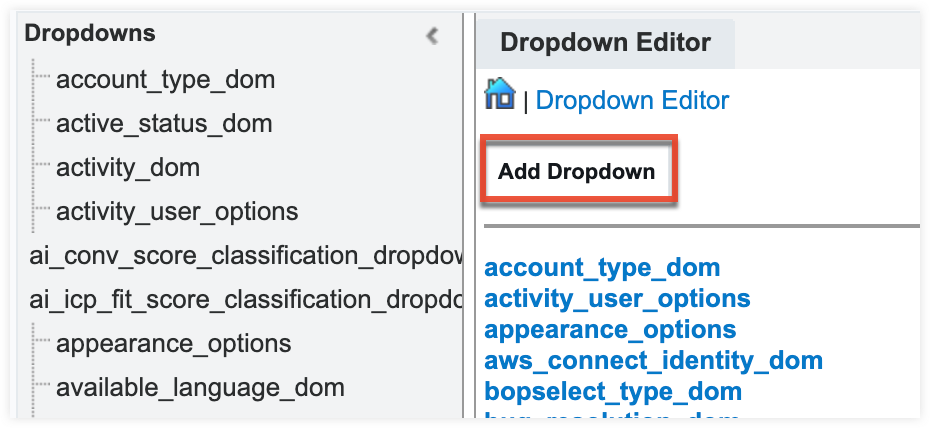
Add the following dropdown lists in Sugar. Make sure the "Item Name" and "Display Label" for the dropdown values match the "Keys" and "Display Values" in the corresponding field in Syspro to ensure that the dropdown values sync properly between the systems.
- syspro_ap_terms_dd_c_list
- syspro_ar_terms_dd_c_list
- syspro_ap_branch_dd_c_list
- syspro_branch_dd_c_list
- syspro_company_c_list
- syspro_area_dd_c_list
- syspro_customer_class_dd_c_list
- syspro_salesperson_dd_c_list
- syspro_currency_dd_c_list
- syspro_supplier_class_dd_list
- syspro_warehouse_dd_c_list
- syspro_stock_code_dd_c_list
Note: Update the dropdown list in Sugar for consistency if any changes are made to the dropdown lists in Syspro.
In addition, add/update items for the following stock dropdown lists:
- account_type_dom
- Add the following new item:
- Item Name: Supplier
- Display Label: Supplier (Syspro)
- Update existing item "Customer":
- Display Label: Change to "Customer (Syspro)"
- Add the following new item:
- sales_stage_dom
- Add the following new items:
- Ready for Syspro
- Item Name: Ready for Syspro
- Display Label: Ready for Syspro
- Classification: Open
- Canceled in Syspro
- Item Name: Canceled in Syspro
- Display Label: Canceled in Syspro
- Classification: Closed Lost
- Ready for Syspro
- Add the following new items:
Importing the SugarBPM File
SugarBPM™ is Sugar's business process management tool, which includes the Process Definitions module where you will import the "Quote Sync to Syspro and Cancel Remaining Quotes not Accepted" file. This SugarBPM file is provided in the integration package from Sugar during the onboarding process and enables the integration to:
- Trigger the sync with Syspro when the Sync to Syspro button is clicked on a quote in Sugar.
- Automatically close any open quotes associated with the same opportunity as "Closed Dead".
- Update the opportunity's sales stage as "Ready for Syspro".
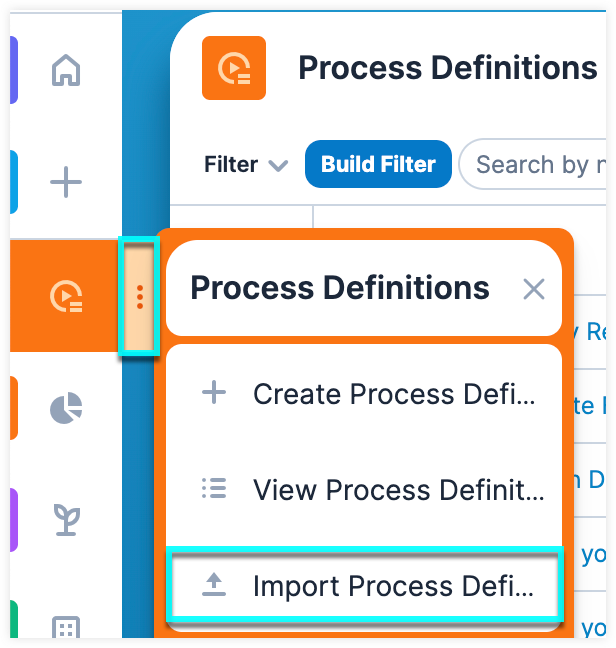
Once the file has been imported, change the process definition's status to "Enabled".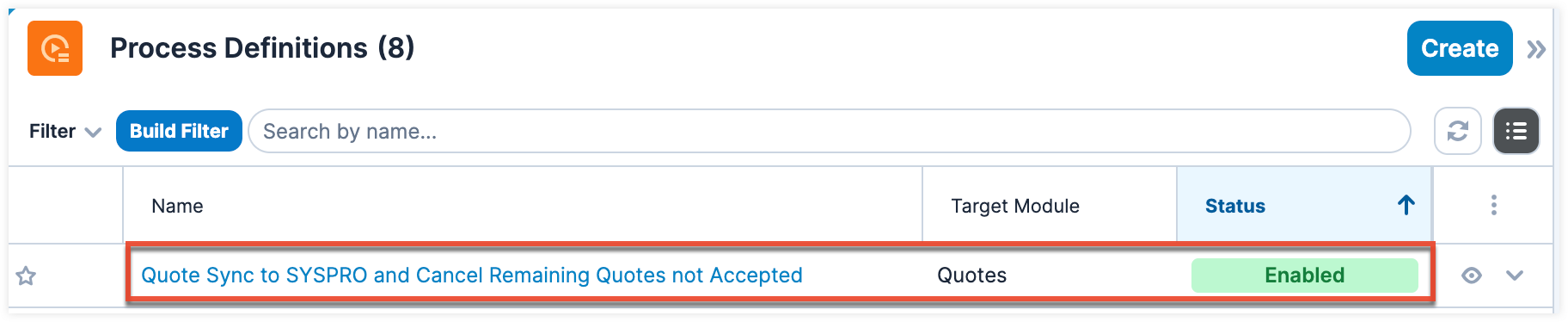
Configuring Default Currency
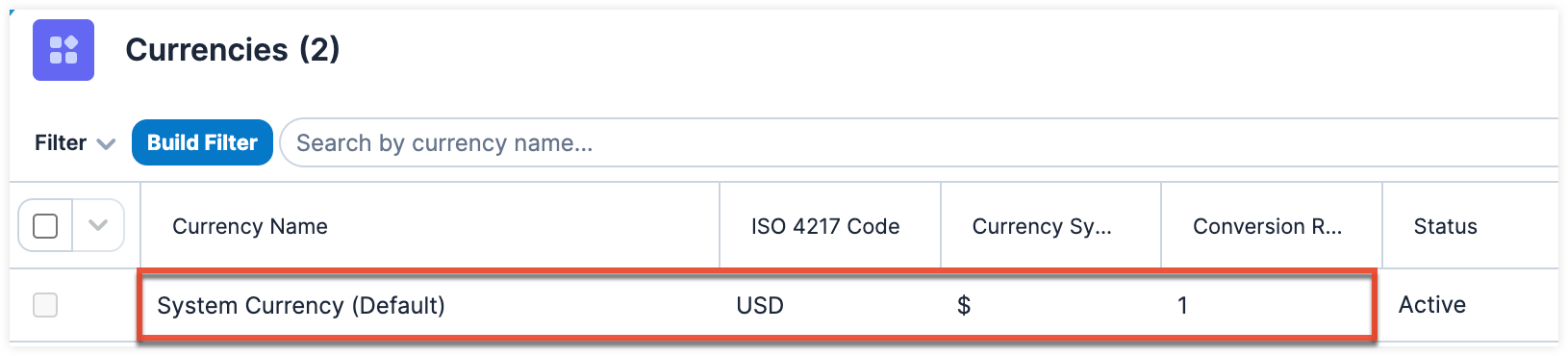
The default system currency in Sugar must match Syspro's base currency to ensure correct pricing and validation in the system.
Use the following steps to configure the default currency in Sugar:
- Navigate to Admin > Currencies.
- Ensure that the system currency matches Syspro's base currency. If it does not match, update the default currency.
Creating Users
Before enabling the integration, the administrator must create user records in Sugar for all sales representatives who will access the system. To create new users in Sugar, you will need to access SugarIdentity.
The following sections below cover how to create new users in Sugar including the integration admin user.
Note: For existing customers who already have all sales reps created as users in Sugar, skip to step 6 to map the Sugar user to the corresponding Syspro sales rep.
Basic User Creation
Use the following steps to create new users in Sugar:
- Log in to Sugar and navigate to Admin > SugarIdentity.
- Click "Create User" from the home page in SugarIdentity. You can also create users via Quick Create or click the three-dots menu in the Users module tab and select "Create User". If you need to create multiple user records, you can import the list of users via the Import Users option in SugarIdentity.
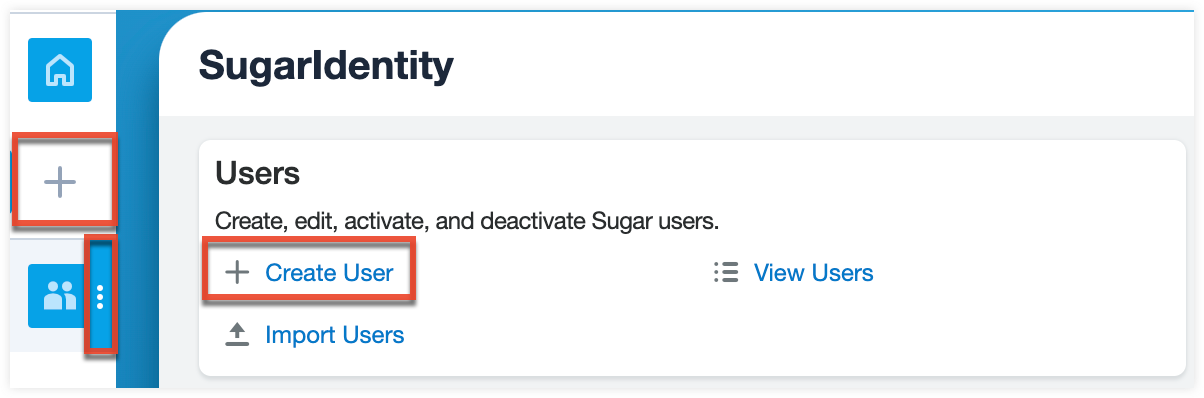
- Enter appropriate values for the fields in the record view layout. All required fields are marked with a red asterisk and must be completed prior to saving. For more information on creating users, refer to the SugarIdentity User Management Guide.
- Assign users to the Sugar Sell license in the License Type field.
- Click "Save".
- Once the new user is created, navigate back to Sugar's Administration page to configure additional user settings as well as assign teams and roles to the user.
- To ensure that Sugar records are assigned to the correct sales rep in Syspro, navigate to Admin > User Management and open the newly created user record.
- In the Syspro Salesperson field, select the Syspro salesperson (e.g., Max Jensen) from the dropdown list that matches the current Sugar user (e.g., Max Jensen). This creates the mapping between the Sugar user and the Syspro sales rep, ensuring that new records (e.g., accounts) synced from Syspro are automatically assigned to the mapped sales rep.
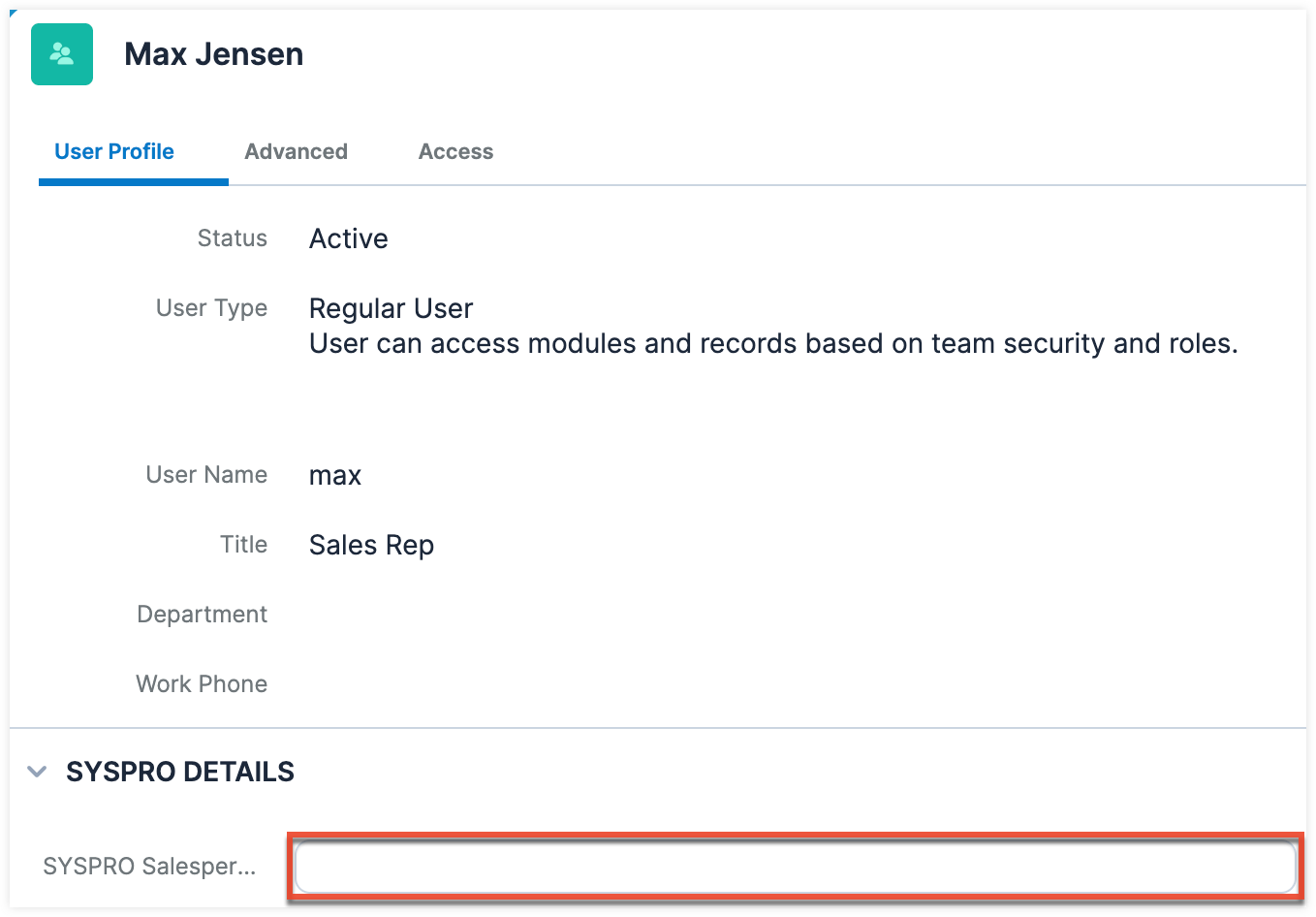
- In the Syspro Salesperson field, select the Syspro salesperson (e.g., Max Jensen) from the dropdown list that matches the current Sugar user (e.g., Max Jensen). This creates the mapping between the Sugar user and the Syspro sales rep, ensuring that new records (e.g., accounts) synced from Syspro are automatically assigned to the mapped sales rep.
Creating an Integration User
In addition to creating regular users, it is recommended as a best practice to create a dedicated integration user. The integration user is used by Syspro Connect (integration platform) to authenticate and perform automated updates in Sugar. Using an integration user ensures that changes made by the integration are clearly tracked, making it easier for administrators to review and audit activity performed by the integration.
Note: Although the integration user takes up a Sugar license, it is used exclusively by the integration and is not meant to be used for logging in to Sugar.
To create an integration admin user, follow the steps in the section above, using the following guidelines:
- Enter the user's name as "Integration User".
- Select the CRM User Type field as "CRM System Administrator".
Once the integration user is created, the administrator will need to share the integration user's username and password along with their Sugar instance URL to Syspro Connect. Syspro Connect will then authenticate this user account and generate secure access tokens to connect to Sugar and perform updates in the system.
Connecting the Integration Platform
Syspro Connect links Syspro and Sugar to synchronize customer, product, sales, and financial data between the two systems. To complete the integration, the administrator must provide the following information during the onboarding process to connect Syspro Connect to Sugar and Syspro:
- Valid Syspro credentials with access to the required company and services.
- Valid Sugar integration user credentials.
- Sugar and Syspro system URLs.
- Include IP address and port for Syspro.
- Verified network access to ensure that firewalls/IP whitelisting allows Syspro Connect to reach the Syspro environment.
Once the necessary information is provided and the systems are connected, Syspro Connect can securely authenticate and communicate with Syspro and Sugar through their APIs.